Category: Uncategorized

  • Cybersecurity Basics in 2026: A Simple Guide to Protect Your Digital Life

    Cybersecurity Basics in 2026: A Simple Guide to Protect Your Digital Life

    In today’s connected world, protecting personal and business information has never been more important. As cyber threats continue to evolve in 2026, understanding Cybersecurity Basics is essential for anyone who uses the internet. Whether you’re shopping online, working remotely, managing financial accounts, or simply browsing websites, cybercriminals are constantly looking for opportunities to steal sensitive information.

    The good news is that staying secure doesn’t require advanced technical knowledge. By learning a few essential security practices and using trusted tools, you can significantly reduce your risk of becoming a victim of cybercrime. This guide explains the most important cybersecurity concepts in simple language, making it easy for beginners to build safer online habits.


    What Are Cybersecurity Basics?

    Cybersecurity Basics refer to the fundamental practices used to protect computers, smartphones, networks, online accounts, and personal information from digital threats. These security measures help prevent unauthorized access, identity theft, financial fraud, malware infections, and data breaches.

    Cybersecurity isn’t only for large companies. Every internet user has valuable information worth protecting, including passwords, banking details, personal photos, emails, and social media accounts.


    Why Cybersecurity Matters More in 2026

    Technology continues to improve, but cybercriminals are also becoming more sophisticated. Artificial intelligence, automation, and advanced phishing attacks have made online scams harder to detect.

    Common cyber risks include:

    • Identity theft
    • Ransomware attacks
    • Phishing emails
    • Password theft
    • Fake shopping websites
    • Financial fraud
    • Social media account hacking

    Understanding these threats helps you recognize suspicious activity before it causes serious damage.


    Common Cyber Threats Everyone Should Know

    1. Phishing Scams

    Phishing attacks trick users into revealing passwords, banking information, or personal data through fake emails, text messages, or websites.

    Warning signs include:

    • Urgent requests
    • Suspicious links
    • Grammar mistakes
    • Unexpected attachments
    • Requests for confidential information

    Always verify the sender before clicking any link.


    2. Malware

    Malware is harmful software designed to damage devices or steal information.

    Examples include:

    • Viruses
    • Trojans
    • Spyware
    • Worms
    • Ransomware

    Installing software only from trusted sources greatly reduces this risk.


    3. Weak Passwords

    Many security breaches happen because people reuse simple passwords across multiple websites.

    Avoid passwords like:

    • 123456
    • Password
    • Qwerty
    • Your birthday

    Instead, create long passwords using letters, numbers, and special characters.


    4. Public Wi-Fi Risks

    Free Wi-Fi networks in airports, hotels, or coffee shops may not be secure.

    Avoid accessing:

    • Banking accounts
    • Payment services
    • Business systems
    • Sensitive documents

    A Virtual Private Network (VPN) provides additional protection when using public networks.


    Essential Cybersecurity Tips

    Learning Cybersecurity Basics means developing safe digital habits.

    Use Multi-Factor Authentication (MFA)

    MFA adds another verification step beyond your password, making accounts much harder to compromise.

    Examples include:

    • Authentication apps
    • Security keys
    • One-time verification codes
    • Biometrics

    Keep Software Updated

    Software updates often fix security vulnerabilities.

    Always update:

    • Operating systems
    • Browsers
    • Mobile apps
    • Antivirus software
    • Smart devices

    Enable automatic updates whenever possible.


    Back Up Important Files

    Data backups protect you against ransomware, accidental deletion, and hardware failures.

    Recommended backup methods:

    • External hard drives
    • Cloud storage
    • Automated backup services

    Following the 3-2-1 backup rule is considered a best practice.


    Install Reliable Security Software

    Modern security software helps detect:

    • Malware
    • Suspicious downloads
    • Dangerous websites
    • Email threats

    Choose a reputable security solution and keep it updated.


    Safe Online Shopping Practices

    Online shopping continues to grow every year, making shoppers attractive targets.

    Stay protected by:

    • Shopping on secure websites (HTTPS)
    • Using trusted payment methods
    • Avoiding deals that seem too good to be true
    • Checking seller reviews
    • Monitoring bank statements regularly

    Never save payment information on unfamiliar websites.


    Social Media Security

    Social media accounts often contain valuable personal information.

    Protect your profiles by:

    • Limiting public information
    • Reviewing privacy settings
    • Avoiding suspicious friend requests
    • Not sharing verification codes
    • Watching for fake accounts

    Think carefully before posting personal details that could help someone answer security questions.


    Email Security Best Practices

    Email remains one of the most common attack methods.

    Follow these guidelines:

    • Don’t open unexpected attachments.
    • Verify unfamiliar senders.
    • Avoid clicking shortened links without checking the destination.
    • Report phishing attempts.
    • Delete suspicious messages immediately.

    Even messages that appear to come from trusted organizations should be verified if they request sensitive information.


    Protecting Smart Devices

    Homes now contain many internet-connected devices, including:

    • Smart TVs
    • Security cameras
    • Smart speakers
    • Doorbells
    • Home assistants

    Secure these devices by:

    • Changing default passwords
    • Updating firmware
    • Disabling unused features
    • Using secure Wi-Fi encryption

    Every connected device can become a potential entry point if left unsecured.


    Cybersecurity for Families

    Parents can improve household digital safety by:

    • Teaching children about online scams
    • Using parental controls
    • Setting screen time limits
    • Monitoring downloads
    • Encouraging strong passwords

    Education remains one of the strongest defenses against cyber threats.


    The Future of Online Security

    Cybersecurity will continue evolving alongside artificial intelligence, cloud computing, connected devices, and digital services. While attackers develop new techniques, security technologies are also becoming smarter at detecting unusual activity before damage occurs.

    The most effective protection combines technology with informed users who practice safe online behavior every day.


    Conclusion

    Understanding Cybersecurity Basics is no longer optional—it’s an essential life skill in 2026. Small actions such as creating strong passwords, enabling multi-factor authentication, updating software, recognizing phishing attempts, and backing up important files can dramatically improve your online safety.

    Cyber threats may continue to evolve, but staying informed and adopting smart digital habits helps protect your personal information, finances, and devices. By making cybersecurity part of your daily routine, you can confidently navigate the digital world while reducing the risk of becoming a target of online attacks.

  • Gaming PCs in 2026: The Complete Buyer’s Guide for Every Gamer

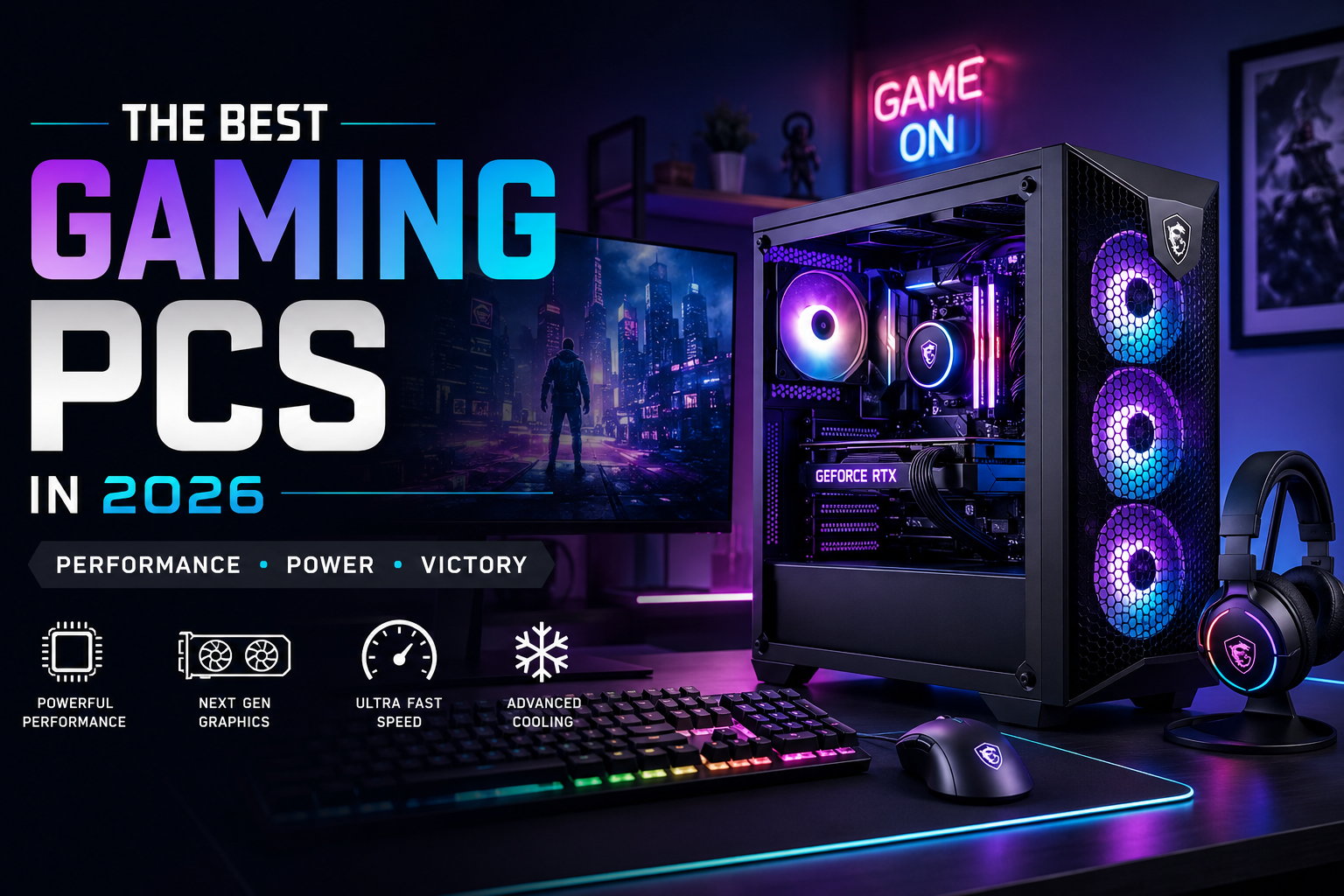
    Gaming PCs in 2026: The Complete Buyer’s Guide for Every Gamer

    Gaming PCs continue to evolve every year, offering faster performance, realistic graphics, and smoother gameplay than ever before. Whether you enjoy competitive multiplayer games, immersive open-world adventures, or content creation alongside gaming, choosing the right system can make a huge difference.

    This guide explains everything beginners and experienced gamers need to know before buying a new computer. From hardware components to performance tips, you’ll learn how to choose the right setup without overspending.

    Why Gaming PCs Are Worth Buying in 2026

    Modern games demand powerful hardware that delivers high frame rates, fast loading times, and detailed visuals. A quality desktop provides better cooling, upgrade flexibility, and long-term value compared to many other gaming devices.

    Today’s systems also support:

    • Ray tracing for realistic lighting
    • AI-powered performance improvements
    • High refresh rate gaming
    • Faster SSD storage
    • Streaming and content creation
    • Virtual reality compatibility

    These improvements make modern computers a smart investment for anyone who wants the best gaming experience.

    What Makes a Great Gaming PC?

    Before purchasing a Gaming PCs system, understand the hardware that affects performance.

    Processor (CPU)

    The processor handles game calculations, background applications, and multitasking. A modern multi-core processor ensures smooth gameplay even while streaming or recording.

    Look for:

    • At least 6 cores
    • High clock speeds
    • Latest generation architecture

    Graphics Card (GPU)

    The graphics card is the most important component in Gaming PCs. It determines visual quality, frame rates, and resolution.

    A powerful GPU allows you to enjoy:

    • 1080p ultra settings
    • 1440p high refresh gaming
    • 4K gaming
    • Ray tracing
    • AI frame generation

    Investing in a strong graphics card provides the biggest improvement in gaming performance.

    Memory (RAM)

    Most gamers should choose:

    • 16GB for everyday gaming
    • 32GB for streaming and multitasking

    Faster RAM also improves loading speeds in many modern games.

    Storage

    Solid State Drives (SSD) dramatically reduce loading times.

    Recommended:

    • 1TB NVMe SSD minimum
    • 2TB if you install many games

    Traditional hard drives are useful only for storing large media files.

    Cooling System

    Powerful hardware generates heat.

    Choose systems with:

    • Multiple case fans
    • Large air coolers
    • Liquid cooling for high-end builds
    • Proper airflow

    Good cooling keeps performance consistent during long gaming sessions.

    Best Features to Look for in Gaming PCs

    When comparing different systems, prioritize these features:

    • Latest graphics technology
    • DDR5 memory
    • PCIe Gen 5 support
    • Wi-Fi 7 compatibility
    • USB-C connectivity
    • Fast NVMe SSD
    • Reliable power supply
    • Easy upgrade options

    These features help your computer remain useful for several years.

    Choosing the Right Gaming PC for Your Budget

    Entry-Level

    Ideal for:

    • Casual gamers
    • Popular online games
    • Full HD gaming

    Mid-Range

    Perfect for:

    • High settings
    • Competitive gaming
    • Streaming
    • Video editing

    High-End

    Designed for:

    • 4K gaming
    • Professional streaming
    • VR gaming
    • Heavy multitasking
    • Content creation

    Choose the category that matches your gaming habits rather than buying unnecessary hardware.

    Desktop vs. Laptop

    Many people compare desktops with gaming laptops before purchasing.

    Desktop advantages include:

    • Better cooling
    • Easier upgrades
    • Higher performance
    • Longer lifespan
    • Better price-to-performance ratio

    Gaming laptops offer portability, but desktops generally deliver greater value for serious gamers.

    Common Mistakes Buyers Should Avoid

    Many first-time buyers spend money on features they don’t need.

    Avoid these mistakes:

    • Buying too little storage
    • Ignoring power supply quality
    • Choosing poor airflow cases
    • Purchasing outdated hardware
    • Paying extra only for RGB lighting
    • Forgetting future upgrade options

    Planning ahead can save money over the life of your system.

    Should You Build or Buy?

    Both options have benefits.

    Build Your Own

    Advantages:

    • Better component selection
    • Easier future upgrades
    • Potential cost savings
    • Complete customization

    Buy a Prebuilt System

    Advantages:

    • Ready to use
    • Warranty included
    • Professional cable management
    • Technical support

    Beginners often prefer prebuilt computers, while experienced users may enjoy assembling their own systems.

    Tips to Improve Gaming Performance

    Even powerful hardware benefits from proper optimization.

    Follow these tips:

    • Update graphics drivers regularly.
    • Install games on an SSD.
    • Close unnecessary background applications.
    • Keep Windows updated.
    • Clean dust from the computer every few months.
    • Enable performance mode where appropriate.
    • Maintain proper cooling and airflow.

    Small improvements can noticeably increase frame rates and system stability.

    Are Gaming PCs Good for More Than Gaming?

    Absolutely.

    Besides Gaming PCs, they are excellent for:

    • Video editing
    • Graphic design
    • 3D rendering
    • Programming
    • Live streaming
    • Music production
    • AI workloads

    A high-performance computer can easily handle demanding professional tasks alongside entertainment.

    Final Thoughts

    Choosing the right Gaming PCs depends on your budget, gaming style, and future needs. Prioritize a capable graphics card, modern processor, sufficient RAM, and fast SSD storage rather than cosmetic features. A well-balanced system delivers smoother gameplay, supports future upgrades, and remains reliable for years.

    Whether you’re entering competitive esports, exploring massive open-world titles, or creating content, investing in quality hardware ensures an enjoyable experience. By understanding the essential components and avoiding common buying mistakes, you’ll be better prepared to select a computer that offers excellent performance and lasting value throughout 2026 and beyond.

  • Best Laptops in 2026: Top Picks for Every Budget and Need

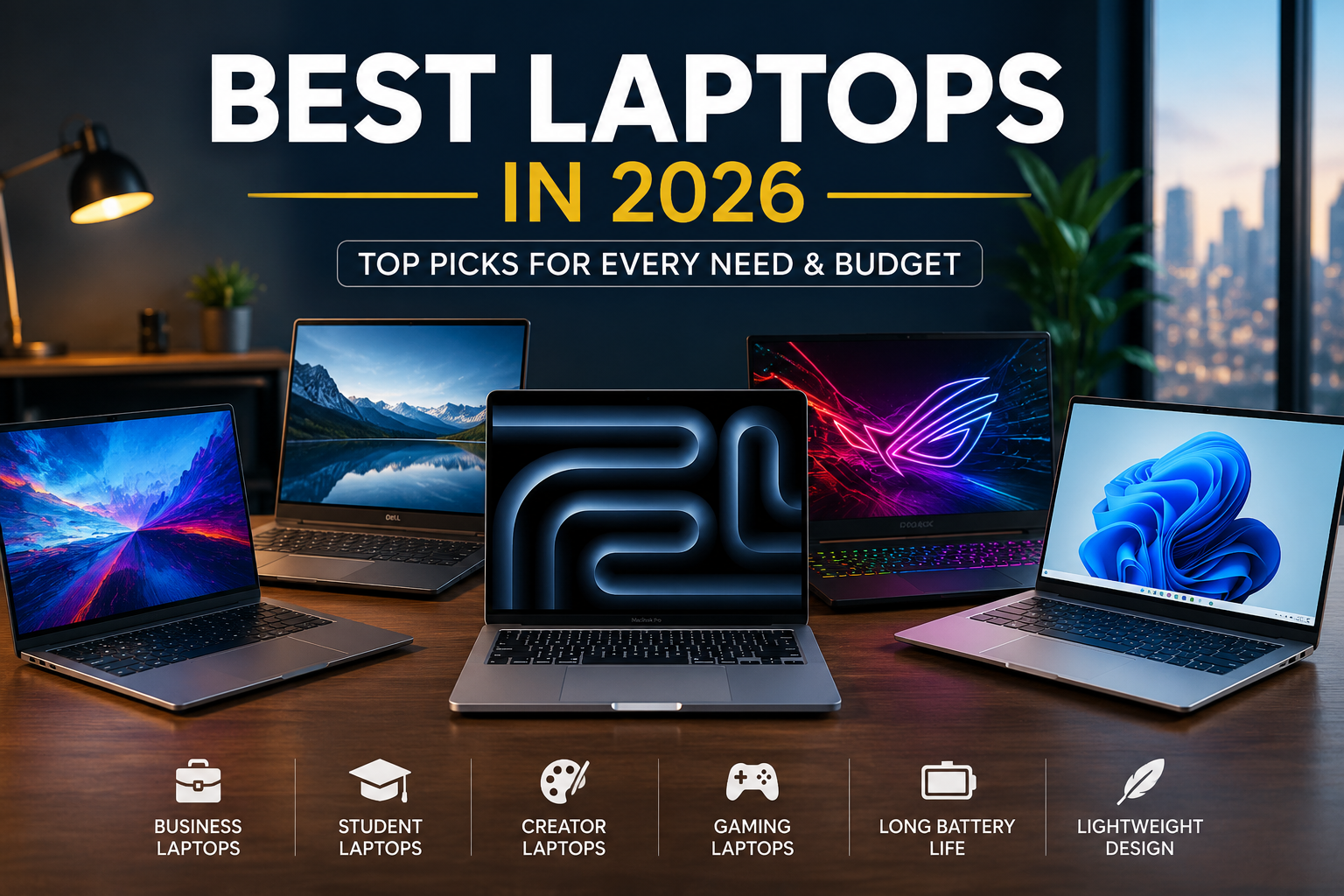
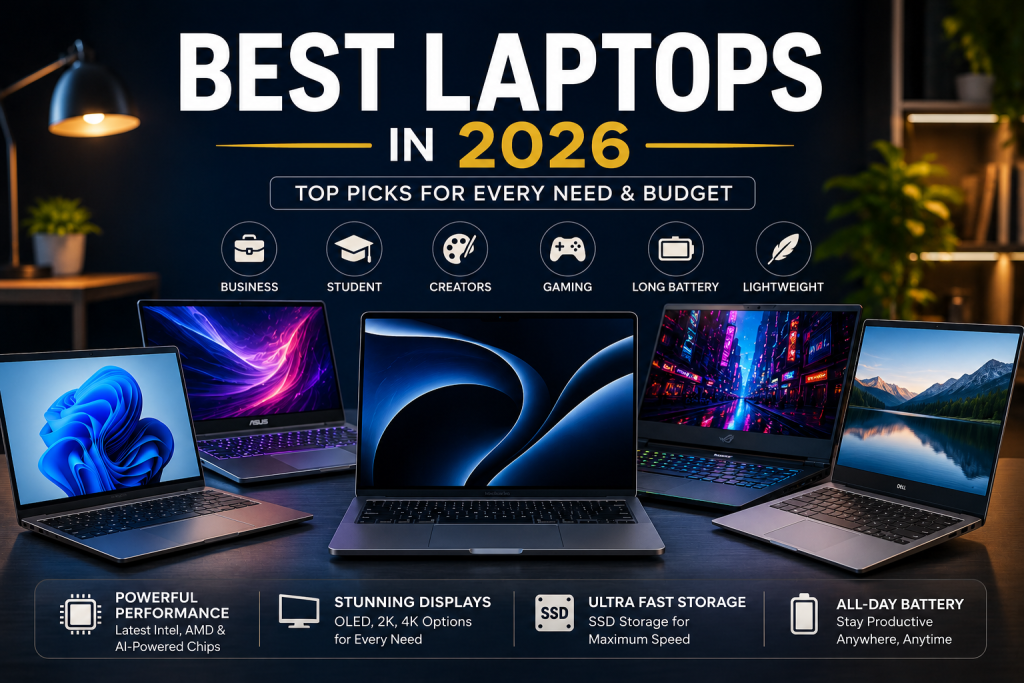
    Best Laptops in 2026: Top Picks for Every Budget and Need

    Finding the Best Laptops in 2026 is easier than ever, but choosing the right one still depends on how you plan to use it. Whether you’re working remotely, studying, creating content, gaming, or simply browsing the web, today’s laptops offer impressive speed, battery life, and portability.

    With new processors, AI-powered features, brighter displays, and longer-lasting batteries, manufacturers have introduced devices that deliver outstanding performance without compromising on design. This guide highlights the top laptop categories, key features to consider, and practical buying advice to help you make a smart investment.


    Why Laptop Technology Is Better in 2026

    Modern laptops are becoming faster, lighter, and more energy efficient. Thanks to next-generation processors and AI-powered software optimization, users can enjoy smoother multitasking, improved battery management, and better security features.

    Many premium models now include:

    • AI-assisted productivity tools
    • OLED or Mini-LED displays
    • Wi-Fi 7 support
    • All-day battery life
    • Faster SSD storage
    • Improved webcams for video calls
    • Better cooling systems

    These upgrades make today’s laptops suitable for both professional and personal use.


    Best Laptops for Everyday Productivity

    If your daily tasks include web browsing, email, office work, streaming, and video conferencing, you don’t need the most expensive machine.

    Look for:

    • Intel Core Ultra or AMD Ryzen AI processors
    • At least 16GB RAM
    • 512GB SSD storage
    • Full HD or higher display
    • Battery life of 10 hours or more

    These specifications provide fast performance while keeping costs reasonable.


    Best Laptops for Students

    Students need portability, durability, and long battery life. A lightweight laptop that fits easily into a backpack is often the ideal choice.

    Important features include:

    • Weight under 3.5 pounds
    • Comfortable keyboard
    • Reliable webcam
    • USB-C charging
    • Fast SSD storage
    • Excellent battery life

    A balanced combination of performance and affordability helps students complete assignments, attend online classes, and collaborate efficiently.


    Best Laptops for Business Professionals

    Business users often prioritize reliability, security, and productivity.

    The ideal business laptop should include:

    • Fingerprint reader or facial recognition
    • High-quality webcam
    • Strong build quality
    • Multiple connectivity options
    • Long software support
    • Comfortable keyboard for extended typing

    Many premium business laptops also feature AI-powered meeting enhancements such as background noise reduction and automatic camera framing.


    Best Laptops for Content Creators

    Video editors, photographers, designers, and creative professionals require more powerful hardware.

    Recommended specifications include:

    • Dedicated graphics card
    • Color-accurate display
    • 32GB RAM or higher
    • 1TB SSD storage
    • Powerful multi-core processor

    High-resolution displays with wide color coverage allow creators to edit photos and videos with greater accuracy.


    Best Laptops for Gaming

    Gaming laptops continue to improve with faster graphics, higher refresh-rate displays, and better thermal management.

    Key gaming features include:

    • NVIDIA RTX graphics
    • AMD Radeon graphics
    • 144Hz or higher display
    • Advanced cooling system
    • Fast NVMe SSD
    • High-performance processor

    These components deliver smoother gameplay, quicker loading times, and better overall gaming performance.


    Battery Life Matters More Than Ever

    Battery performance has become one of the biggest deciding factors when purchasing a laptop.

    Many modern devices now offer:

    • 12–18 hours of battery life
    • Fast charging
    • Better power efficiency
    • Intelligent battery optimization

    Long battery life reduces the need to carry chargers throughout the day.


    Display Quality Makes a Big Difference

    The display affects nearly every part of the user experience.

    When comparing laptops, consider:

    • OLED displays
    • IPS panels
    • 2K or 4K resolution
    • Anti-glare coating
    • High brightness
    • Accurate colors

    A quality display improves productivity, entertainment, and creative work.


    Storage and Memory Recommendations

    Storage and RAM significantly impact overall performance.

    For most users:

    • 16GB RAM is the new standard.
    • 512GB SSD offers enough storage.
    • 1TB SSD is ideal for creators and gamers.
    • Avoid traditional hard drives whenever possible.

    Solid-state drives boot faster and load applications much more quickly than older storage technologies.


    AI Features in Modern Laptops

    Artificial intelligence has become one of the biggest trends in personal computing.

    Many new laptops now include:

    • AI-powered photo editing
    • Live caption generation
    • Voice enhancement
    • Background blur
    • Automatic performance optimization
    • Smart battery management

    These features improve productivity while reducing manual work.


    How to Choose the Right Laptop

    Before buying, ask yourself:

    • What will you primarily use it for?
    • Do you travel frequently?
    • Do you need dedicated graphics?
    • How important is battery life?
    • What’s your budget?
    • How much storage do you need?

    Answering these questions helps narrow your options and prevents overspending.


    Common Mistakes to Avoid

    Many buyers purchase laptops based only on price.

    Avoid these mistakes:

    • Buying with only 8GB RAM
    • Ignoring battery life
    • Choosing outdated processors
    • Overlooking display quality
    • Purchasing insufficient storage
    • Forgetting future upgrade needs

    Spending slightly more today can extend the useful life of your laptop for several years.


    Final Thoughts

    Choosing the Best Laptops in 2026 comes down to balancing performance, battery life, portability, and value. The latest models offer significant improvements in speed, efficiency, and AI-powered features, making them excellent choices for students, professionals, gamers, and creators alike.

    Instead of focusing solely on brand names, compare specifications, display quality, battery performance, and long-term reliability. A well-chosen laptop will remain productive for years and provide a better overall experience for work, entertainment, and everyday computing.


    FAQ

    Which laptop is best in 2026?

    The best option depends on your needs. Professionals, students, gamers, and creators all benefit from different hardware configurations.

    How much RAM should a laptop have?

    For most users, 16GB RAM provides excellent performance, while creative professionals may benefit from 32GB or more.

    Is SSD better than HDD?

    Yes. SSDs are significantly faster, quieter, and more reliable than traditional hard drives.

    How long should a laptop battery last?

    A good modern laptop should deliver at least 10–12 hours of real-world battery life.

    Should I buy a laptop with AI features?

    AI-powered features improve productivity, video calls, battery optimization, and overall user experience, making them a valuable addition.

  • macOS Tips (2026): 15 Essential Tricks to Make Your Mac Faster, Smarter, and More Productive

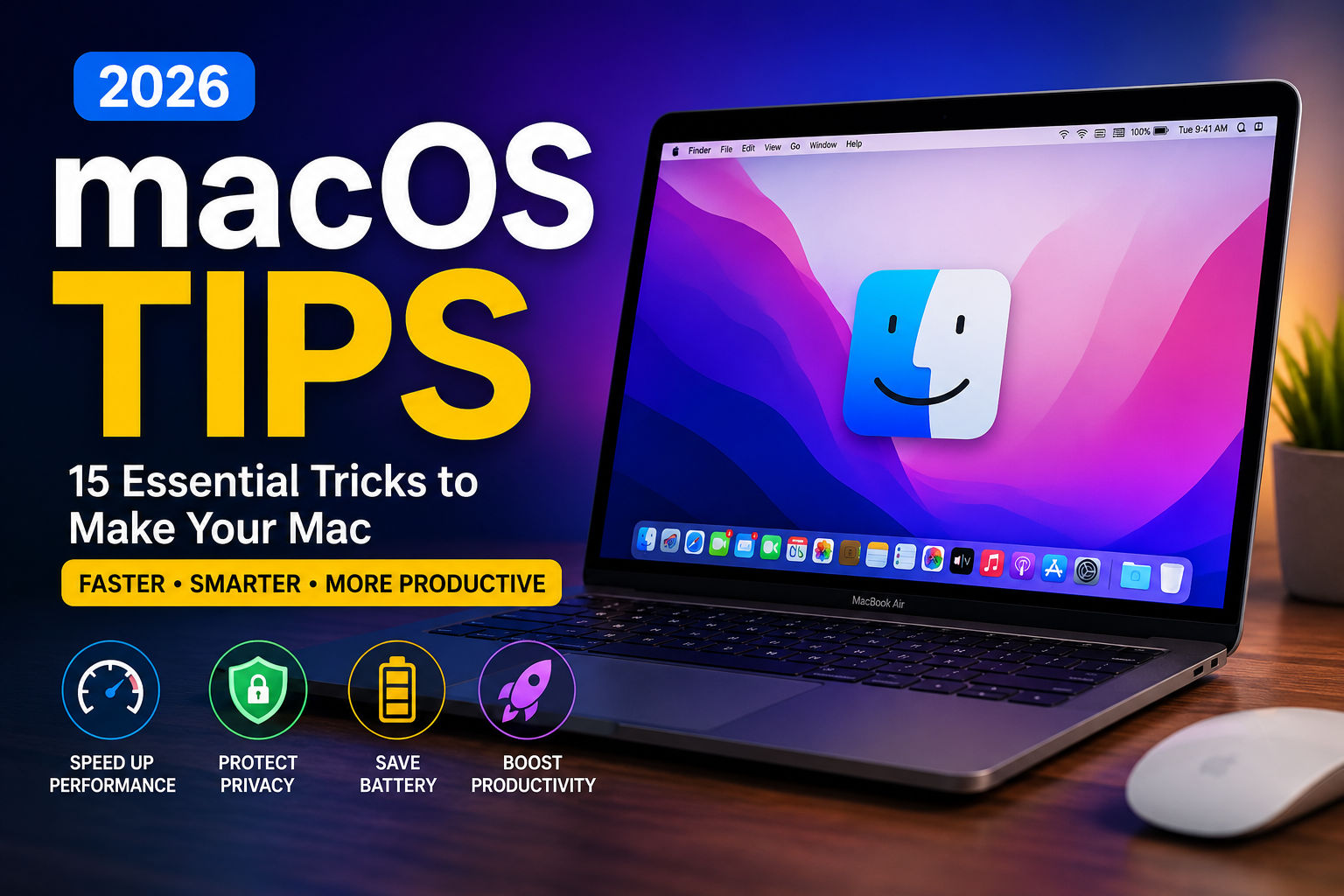
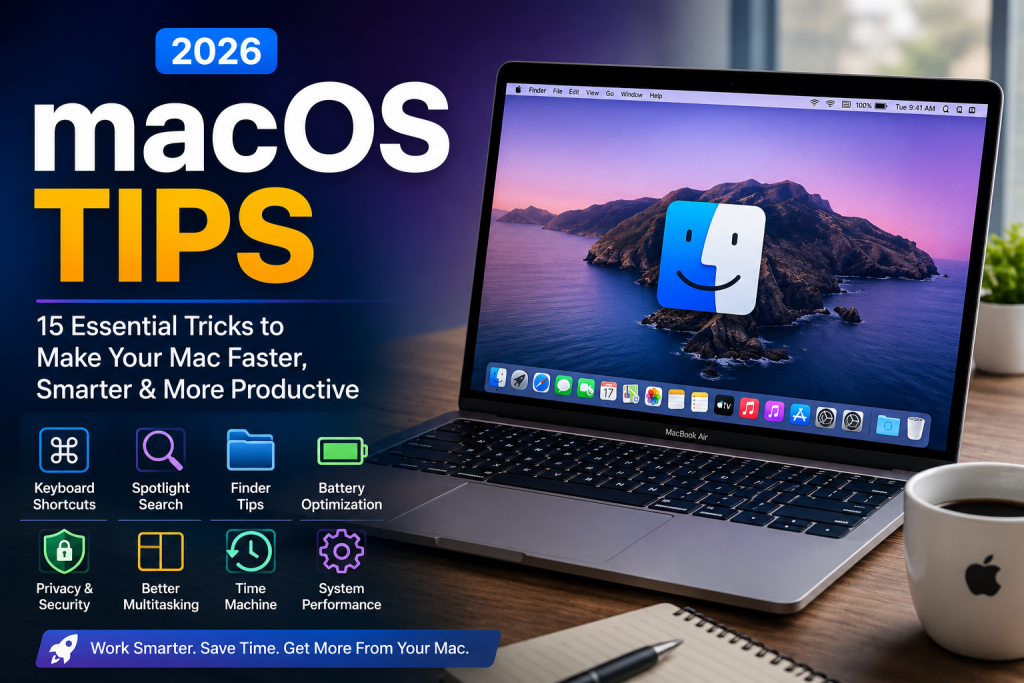
    macOS Tips (2026): 15 Essential Tricks to Make Your Mac Faster, Smarter, and More Productive

    Whether you use a Mac for work, school, content creation, or everyday browsing, learning the right macOS Tips can dramatically improve your productivity. Apple’s operating system is packed with powerful features that many users never discover, even after years of ownership.

    In this 2026 guide, you’ll learn practical techniques that help you work faster, organize files better, protect your privacy, and extend your Mac’s performance. These tips work for most recent versions of macOS and require little to no technical knowledge.

    Let’s explore the best ways to get more from your Mac.


    Why Learning macOS Tips Matters

    Many Mac owners only use basic features like Safari, Finder, and Mail. However, macOS Tips includes dozens of hidden tools that can save time every day.

    Benefits include:

    • Faster workflow
    • Better organization
    • Improved battery life
    • Stronger security
    • Easier multitasking
    • Higher productivity

    Learning even a few new shortcuts can save hours over the course of a year.


    1. Master Keyboard Shortcuts

    Keyboard shortcuts are one of the easiest ways to speed up daily tasks.

    Some of the most useful shortcuts include macOS Tips

    • Command + C → Copy
    • Command + V → Paste
    • Command + Space → Open Spotlight Search
    • Command + Tab → Switch between apps
    • Command + Shift + 5 → Screenshot or Screen Recording
    • Command + H → Hide current app

    Using shortcuts instead of navigating menus helps you work much faster.


    2. Use Spotlight Search Like a Pro

    Spotlight is much more than a file search tool.

    Press Command + Space, then use it to:

    • Launch applications
    • Search documents
    • Perform calculations
    • Convert currencies
    • Convert measurements
    • Find emails
    • Search contacts
    • Check definitions

    Many users rarely open Launchpad because Spotlight is significantly faster.


    3. Organize Your Desktop Automatically

    A cluttered desktop slows productivity.

    Use Stacks to automatically group files by:

    • File type
    • Date
    • Tags

    Right-click your desktop and choose Use Stacks to instantly organize everything.


    4. Split Your Screen for Better Multitasking

    Working with two apps side by side makes multitasking much easier.

    Examples include:

    • Safari + Notes
    • Word + Browser
    • Excel + Mail
    • Messages + Calendar

    Hover over the green window button and select a split-screen option.

    macOS Tips is especially useful for remote work and online research.


    5. Customize the Control Center

    The Control Center lets you quickly access important settings.

    Customize it to include:

    • Wi-Fi
    • Bluetooth
    • Focus Mode
    • Display brightness
    • Sound controls
    • Battery status
    • Accessibility shortcuts

    Removing unused controls creates a cleaner interface.


    6. Clean Up Storage Regularly

    Running out of storage can slow your macOS Tips.

    Go to:

    System Settings → General → Storage

    Review:

    • Large files
    • Downloads
    • Unused applications
    • Duplicate documents
    • Trash

    Deleting unnecessary files keeps performance smooth.


    7. Improve Battery Life

    If you own a MacBook, these habits can help extend battery life:

    • Reduce screen brightness
    • Close unused apps
    • Disable Bluetooth when unnecessary
    • Enable Low Power Mode
    • Keep software updated

    Battery optimization helps maintain long-term performance.


    8. Protect Your Privacy

    Privacy is one of macOS Tips ‘s strongest features.

    Review these settings regularly:

    • Camera permissions
    • Microphone permissions
    • Location access
    • Screen recording permissions
    • Files and folders access

    Only allow trusted applications to access sensitive information.


    9. Take Advantage of Finder Features

    Finder includes several tools many people overlook.

    Useful features include macOS Tips

    • Tags for organizing files
    • Quick Actions
    • File previews
    • Smart Folders
    • Favorites sidebar

    Using Finder efficiently makes locating documents much faster.


    10. Keep Software Updated

    Apple regularly releases updates that improve:

    • Security
    • Stability
    • Performance
    • Compatibility
    • Bug fixes

    Enable automatic updates to ensure your Mac stays protected and performs at its best.


    11. Use Focus Mode

    Focus Mode helps reduce distractions during work or study sessions.

    Create different profiles for:

    • Work
    • Personal time
    • Sleep
    • Gaming
    • Meetings

    Notifications are automatically filtered based on your schedule.


    12. Back Up with Time Machine

    Data loss can happen unexpectedly.

    Time Machine provides an easy backup solution that allows you to restore:

    • Documents
    • Photos
    • Applications
    • Entire system settings

    Regular backups offer peace of mind if hardware issues occur.


    13. Manage Startup Apps

    Too many startup applications increase boot time.

    Go to:

    System Settings → Login Items

    Remove apps you don’t need at startup.

    Your Mac will launch faster and use fewer system resources.


    14. Use Safari Profiles

    Safari now supports separate browsing profiles.

    Create different profiles for:

    • Personal browsing
    • Work
    • Shopping
    • Research

    Each profile maintains its own cookies, bookmarks, extensions, and browsing history.


    15. Restart Occasionally

    Although macOS Tips are reliable, restarting periodically helps:

    • Clear temporary memory
    • Finish pending updates
    • Resolve minor performance issues
    • Refresh background processes

    A simple restart can solve many common problems.


    Common Mistakes to Avoid

    Many users accidentally reduce their Mac’s performance by:

    • Installing unnecessary cleanup software
    • Ignoring software updates
    • Keeping too many browser tabs open
    • Filling storage completely
    • Never restarting the computer
    • Downloading applications from untrusted sources

    Avoiding these habits helps keep your Mac secure and responsive.


    Frequently Asked Questions

    Are these tips useful for beginners?

    Yes. Every recommendation is beginner-friendly and requires little technical experience.

    Will these tips make my Mac faster?

    Many of them can improve responsiveness by reducing unnecessary background activity, organizing storage, and optimizing system settings.

    Do these tips work on newer Macs?

    Most recommendations apply to modern versions of macOS available in 2026.

    Is it safe to enable automatic updates?

    Yes. Automatic updates help improve security, fix bugs, and ensure compatibility with the latest software.


    Conclusion

    Learning the right macOS Tips is one of the easiest ways to improve your daily computing experience. From mastering keyboard shortcuts and Spotlight Search to managing storage, strengthening privacy, and optimizing battery life, small changes can lead to noticeable improvements in speed and productivity.

    As macOS continues to evolve in 2026, regularly exploring new built-in features will help you get the most from your Mac without installing unnecessary third-party tools. Start with a few of these tips today, and you’ll enjoy a faster, more organized, and more efficient workflow.

  • T-Mobile Service Disruption Compensation: What Customers Should Know in 2026

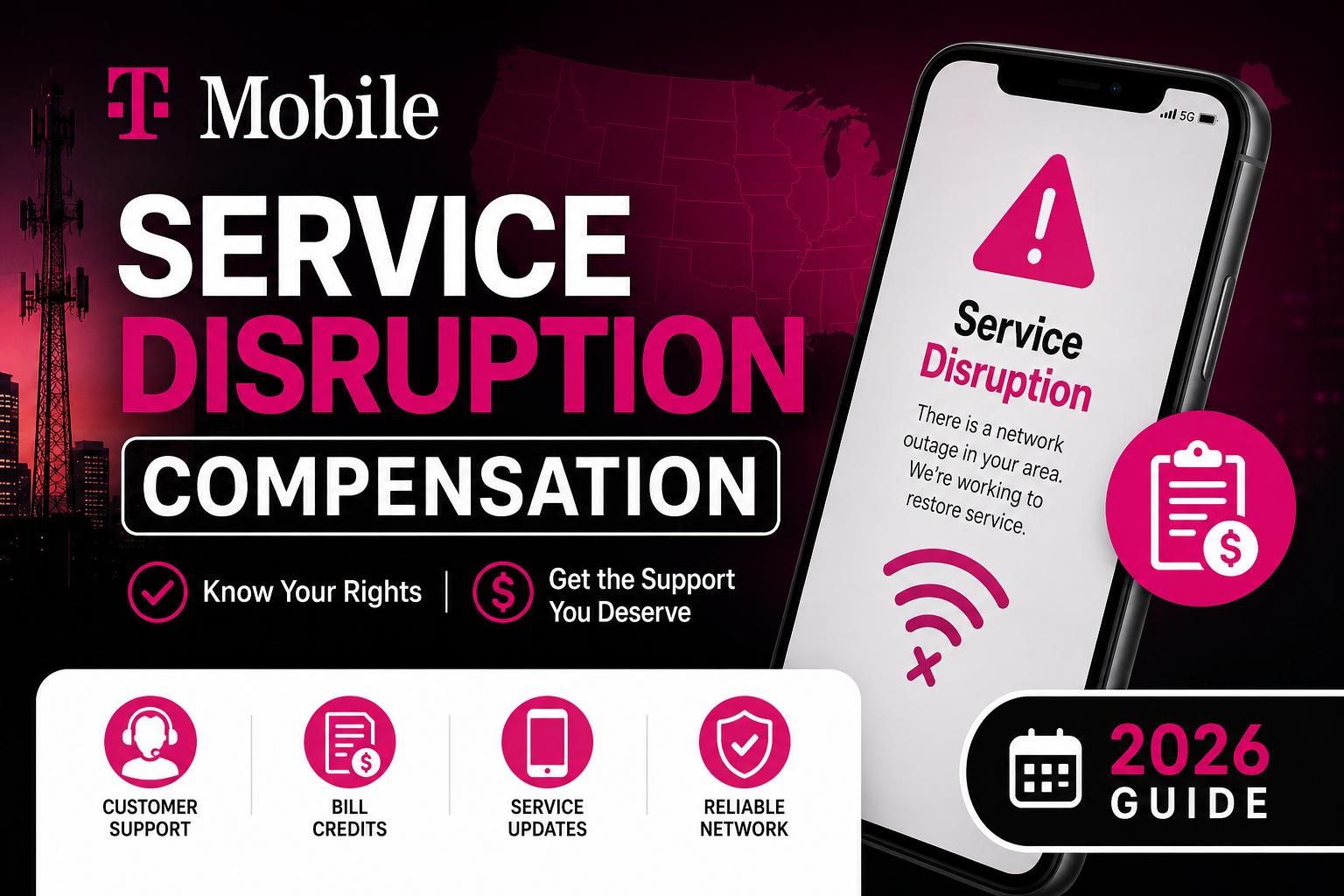
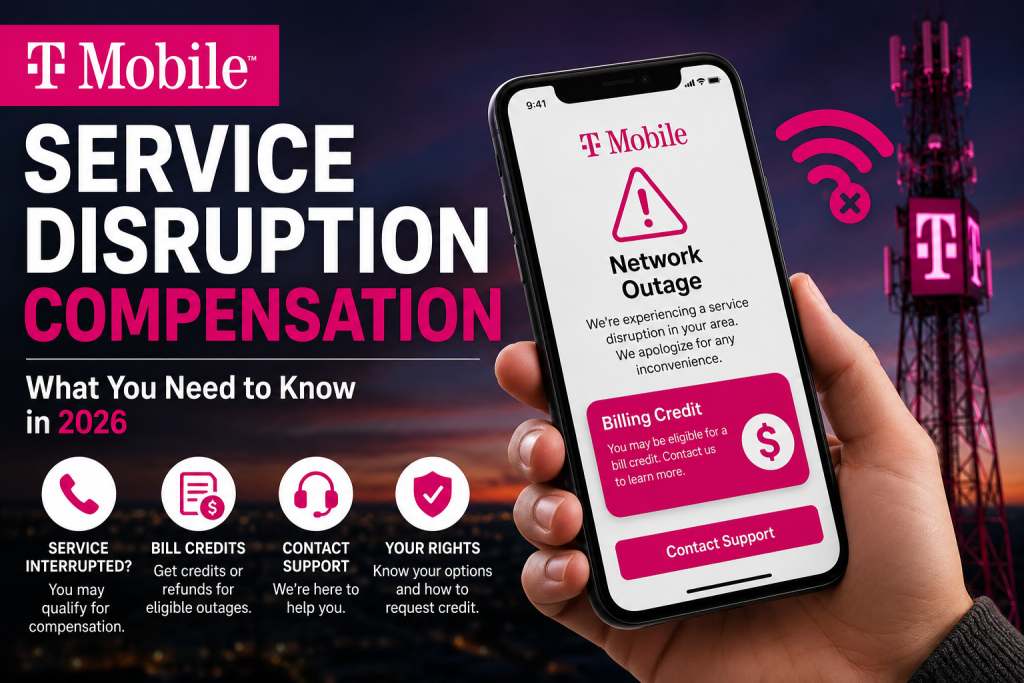
    T-Mobile Service Disruption Compensation: What Customers Should Know in 2026

    If you’ve recently experienced dropped calls, slow mobile data, or a complete network outage, you may be wondering whether you’re entitled to T-Mobile service disruption compensation. While service interruptions can happen for many reasons, customers often have options to request account credits or other forms of compensation depending on the situation.

    This guide explains how compensation works, when you may qualify, how to request it, and what steps to take after a service outage. Whether the disruption lasted a few hours or several days, understanding your rights can help you get the support you deserve.


    What Is T-Mobile Service Disruption Compensation?

    T-Mobile service disruption compensation refers to credits, refunds, or other account adjustments that may be offered when customers experience significant service interruptions.

    Compensation is not automatically provided in every situation. Instead, each case is generally reviewed based on factors such as:

    • Length of the outage
    • Number of affected services
    • Cause of the disruption
    • Customer account history
    • Applicable service terms

    In many cases, customer support may issue billing credits as a goodwill gesture after reviewing your account.


    Common Reasons for Service Disruptions

    T-Mobile service disruption compensation interruptions can occur for several reasons, including:

    • Network maintenance
    • Severe weather events
    • Fiber cable damage
    • Power outages
    • Software updates
    • Cell tower upgrades
    • Unexpected technical failures
    • Natural disasters

    Most disruptions are temporary and resolved quickly, but extended outages may justify contacting customer support.


    Can You Get Compensation?

    Many customers ask whether they automatically qualify for T-Mobile service disruption compensation after an outage.

    The answer depends on several factors.

    You may have a stronger case if:

    • Service was unavailable for an extended period.
    • You could not make calls or use mobile data.
    • The outage affected your work or essential communication.
    • Customer support confirms a verified network issue.
    • Your billing cycle included days with unusable service.

    While there is no guarantee of compensation, politely requesting an account review often produces better results than waiting for automatic credits.


    Types of Compensation Customers May Receive

    Depending on the circumstances, customers may receive one or more of the following:

    1. Bill Credits

    The most common solution is a billing credit applied to your next invoice.

    2. Partial Refunds

    In some situations, customers may receive a refund covering the affected service period.

    3. Promotional Credits

    Occasionally, customer care may offer promotional credits as a goodwill gesture.

    4. Account Adjustments

    Some cases involve correcting billing errors related to the outage.

    Every situation is evaluated individually, so outcomes can vary.


    How to Request Compensation

    If you’ve experienced a major outage, follow these steps.

    Step 1: Gather Information

    Write down:

    • Date of the outage
    • Approximate duration
    • Your location
    • Services affected
    • Error messages (if any)

    Screenshots can also help document the issue.

    Step 2: Contact Customer Support

    Explain the situation clearly and professionally.

    Mention:

    • When the outage started
    • How it affected your service
    • Whether the issue has been resolved
    • Why you’re requesting an account review

    Step 3: Ask for an Account Review

    Instead of demanding compensation, ask whether your account qualifies for a billing adjustment.

    Customer service representatives generally have more flexibility when requests remain respectful.


    Tips That May Improve Your Chances

    When requesting T-Mobile service disruption compensation, consider these best practices:

    • Stay polite throughout the conversation.
    • Provide accurate outage details.
    • Keep screenshots if available.
    • Reference any outage notifications.
    • Contact support soon after the disruption.
    • Save confirmation numbers from support chats.

    Being prepared makes the process smoother for both you and the representative.


    When Compensation May Not Be Available

    Not every interruption qualifies for compensation.

    Examples include:

    • Very short outages
    • Scheduled maintenance
    • Device-related issues
    • SIM card problems
    • Poor indoor signal caused by building materials
    • Problems unrelated to the carrier’s network

    Customer support will typically determine whether the issue was network-related before approving credits.


    How Long Does the Process Take?

    The review process varies.

    Some billing credits appear immediately after contacting support, while others may take several business days to appear on your account.

    If additional investigation is required, customer support may provide an estimated timeline.


    Preventing Future Service Problems

    Although outages cannot always be prevented, these steps may reduce future issues:

    • Keep your phone updated.
    • Install the latest carrier settings.
    • Restart your device after outages.
    • Enable Wi-Fi Calling when available.
    • Check network status before troubleshooting your phone.
    • Report recurring service problems promptly.

    These simple actions often resolve common connectivity issues.


    Frequently Asked Questions

    Is compensation automatic after an outage?

    Not always. Many cases require customers to contact support and request an account review.

    How much compensation can customers receive?

    There is no fixed amount. Credits depend on the length and severity of the disruption and the account review.

    Can business accounts request compensation?

    Business customers may have different service agreements, so compensation policies can vary depending on the plan.

    What if my outage lasted only a few hours?

    Short outages may not qualify, but it’s still reasonable to contact customer support if the disruption significantly affected your service.

    Should I keep evidence of the outage?

    Yes. Screenshots, outage notifications, and records of customer support conversations can help support your request.


    Final Thoughts

    Experiencing a network outage can be frustrating, especially when you rely on mobile service for work, travel, or staying connected with family. While compensation is never guaranteed, understanding the process improves your chances of receiving an account credit or billing adjustment.

    If you believe your service interruption was significant, document the issue, contact customer support promptly, and request an account review. A clear explanation and complete information can make the process faster and more effective.

    By staying informed about T-Mobile service disruption compensation, you’ll be better prepared if another service disruption occurs in 2026 or beyond.

  • Windows 12 Guide (2026): Everything You Need to Know

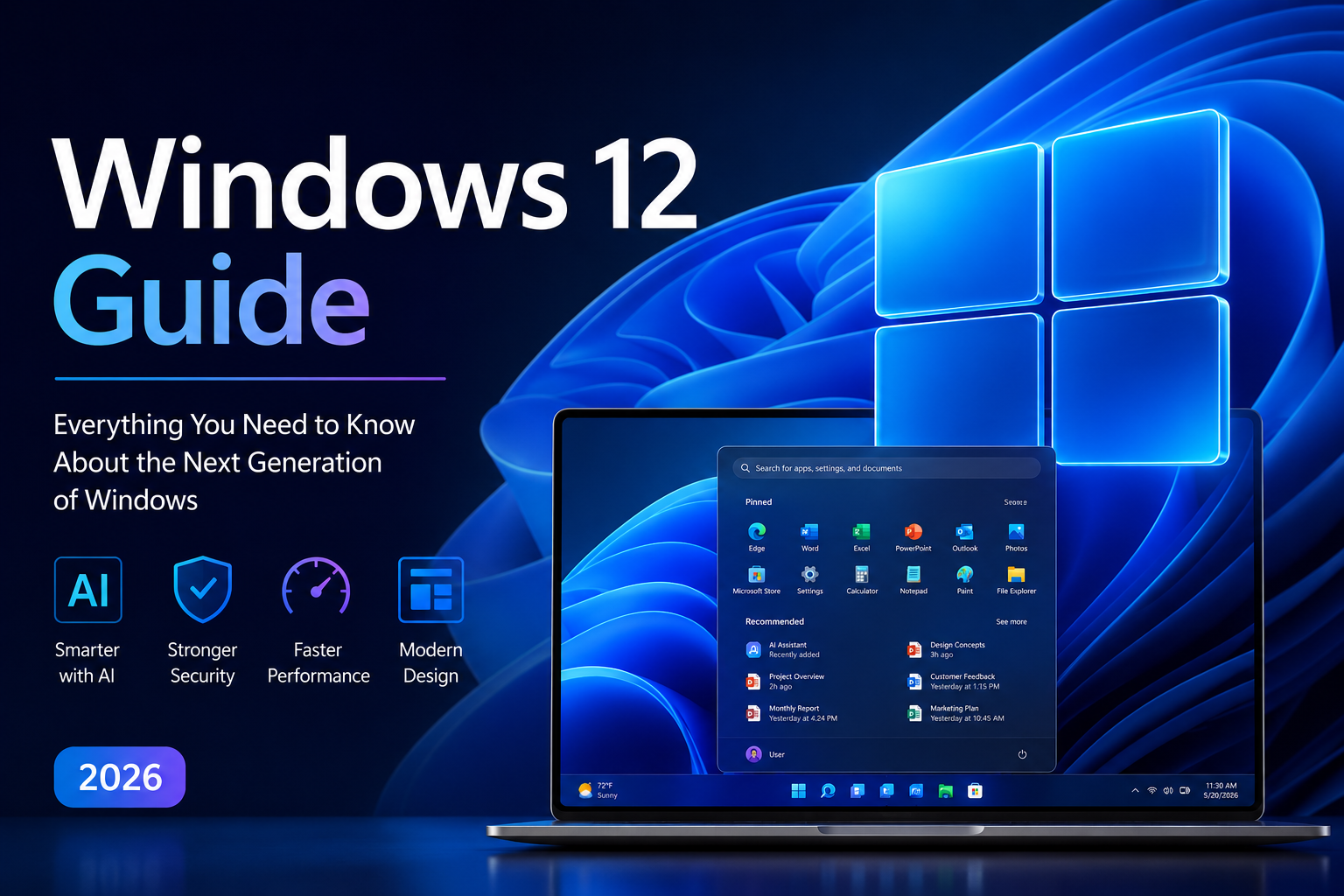
    Windows 12 Guide (2026): Everything You Need to Know

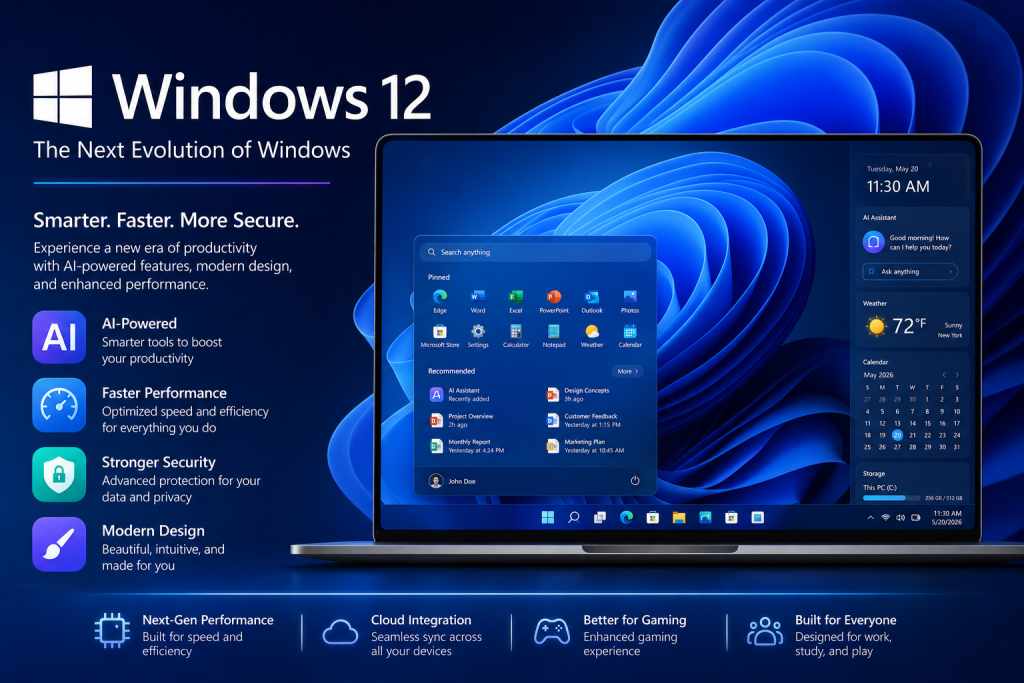
    Technology continues to evolve at a rapid pace, and many users are eager to learn what the future holds for Microsoft’s next operating system. This Windows 12 Guide explains the expected features, system improvements, AI capabilities, security updates, and potential benefits that could shape the next generation of computing in 2026.

    Whether you are a student, professional, gamer, or business owner, understanding the direction of Windows can help you prepare for future upgrades and make informed technology decisions.

    What Is Windows 12?

    Windows 12 Guide is the anticipated successor to Windows 11. While Microsoft has not officially revealed every detail, industry reports and technology experts expect the next version of Windows to focus heavily on artificial intelligence, cloud integration, security enhancements, and a more personalized user experience.

    This Windows 12 Guide aims to help users understand what may be included and why the operating system is generating so much interest.

    Expected Features of Windows 12

    1. Advanced AI Integration

    Artificial intelligence is expected to play a major role in the future of Windows. Users may see AI-powered assistants that can help with tasks such as:

    • Writing emails
    • Summarizing documents
    • Managing schedules
    • Automating repetitive work
    • Improving productivity

    AI tools could become deeply integrated into the operating system, making everyday computing faster and more efficient.

    2. Improved User Interface

    Microsoft window is likely to continue refining the desktop experience with a cleaner and more modern design. Expected improvements include:

    • Redesigned Start Menu
    • Enhanced taskbar customization
    • Better multitasking tools
    • Improved animations and transitions
    • More personalization options

    These updates could make navigation smoother for both new and experienced users.

    3. Faster Performance

    Performance remains one of the biggest priorities for operating systems. Windows 12 Guide may introduce:

    • Faster boot times
    • Better memory management
    • Reduced background resource usage
    • Improved application responsiveness

    Users with newer hardware may notice significant speed improvements compared to older Windows versions.

    4. Stronger Security Features

    Cybersecurity threats continue to increase, making security a critical focus. According to expectations highlighted in this Windows 12 Guide, Microsoft may strengthen protection through:

    • Advanced malware detection
    • AI-driven threat monitoring
    • Enhanced account security
    • Improved ransomware protection
    • More secure cloud synchronization

    These features could help users keep personal and professional data safer than ever before.

    How Windows 12 Could Benefit Everyday Users

    One reason many people are excited about Windows 12 Guide is its potential to simplify everyday tasks.

    For Students

    Students may benefit from:

    • Better note-taking tools
    • AI-powered study assistance
    • Faster performance for educational applications
    • Improved cloud storage integration

    For Professionals

    Business users often require speed, security, and reliability. Windows 12 Guide could provide:

    • Smarter productivity features
    • Better collaboration tools
    • Enhanced remote work capabilities
    • Improved security protections

    For Gamers

    Gaming remains a major focus for Microsoft. Potential gaming improvements include:

    • Better graphics optimization
    • Faster loading times
    • Enhanced DirectX technologies
    • Improved gaming performance
    • Greater compatibility with future hardware

    System Requirements: What to Expect

    Although official requirements have not been finalized, many experts believe Windows 12 will continue emphasizing modern hardware compatibility.

    Potential requirements may include:

    • 64-bit processor
    • TPM 2.0 support
    • Secure Boot capability
    • Sufficient RAM and storage
    • Modern graphics support

    Users planning a future upgrade should ensure their devices meet current Windows 11 requirements, as similar standards may apply.

    Windows 12 vs Windows 11

    Many users wonder whether upgrading will be worthwhile. This Windows 12 Guide suggests several areas where improvements could appear.

    FeatureWindows 11Windows 12 (Expected)
    AI FeaturesLimitedExtensive AI Integration
    SecurityStrongEnhanced AI Security
    PerformanceFastFaster Optimization
    User InterfaceModernMore Personalized
    ProductivityGoodSmarter Automation

    If these expectations become reality, Windows 12 could represent a significant step forward rather than a simple update.

    Should You Upgrade?

    The decision to upgrade depends on your needs.

    Consider upgrading if:

    • You want the latest AI features.
    • You use your computer for work or productivity.
    • Security is a high priority.
    • You plan to purchase new hardware.
    • You want access to future Microsoft innovations.

    However, if your current system performs well and meets your requirements, there may be no immediate need to switch right away.

    Windows 12 in 2026: What the Future Looks Like

    The biggest trend shaping technology in 2026 is artificial intelligence. Operating systems are becoming smarter, more adaptive, and increasingly capable of helping users complete tasks automatically.

    As highlighted throughout this Windows 12 Guide, the next generation of Windows is expected to focus on AI-driven productivity, stronger security, faster performance, and a more personalized computing experience.

    These improvements could change how people interact with computers on a daily basis, making technology more efficient and accessible for everyone.

    Final Thoughts

    Windows 12 has the potential to become one of Microsoft’s most important operating system releases. With expected advancements in AI, security, performance, and usability, it could offer meaningful benefits for students, professionals, creators, and gamers alike.

    While official details continue to emerge, staying informed about upcoming developments will help users prepare for the next chapter of personal computing. If the anticipated features arrive as expected, Windows 12 Guide may set a new standard for modern operating systems in 2026.

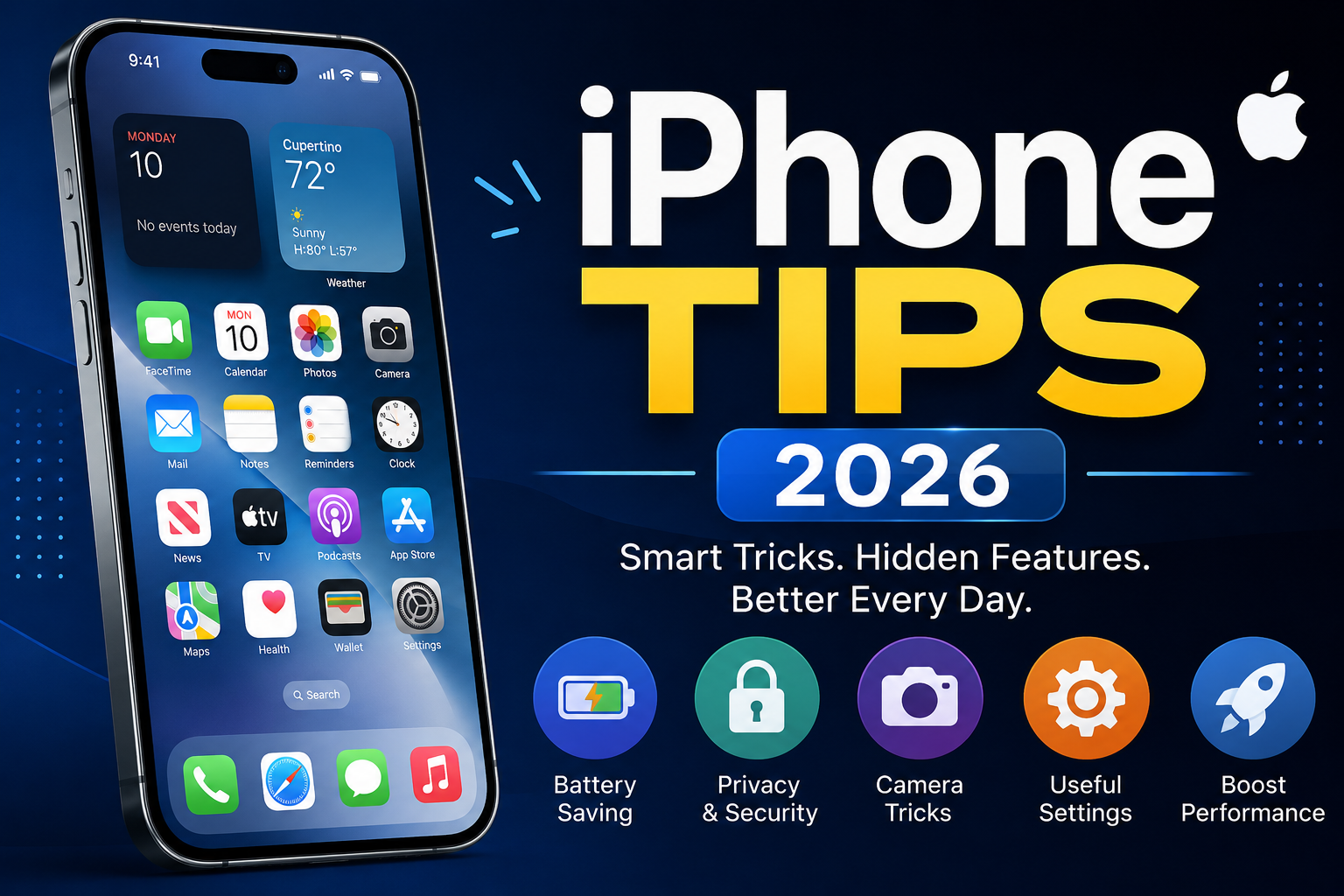
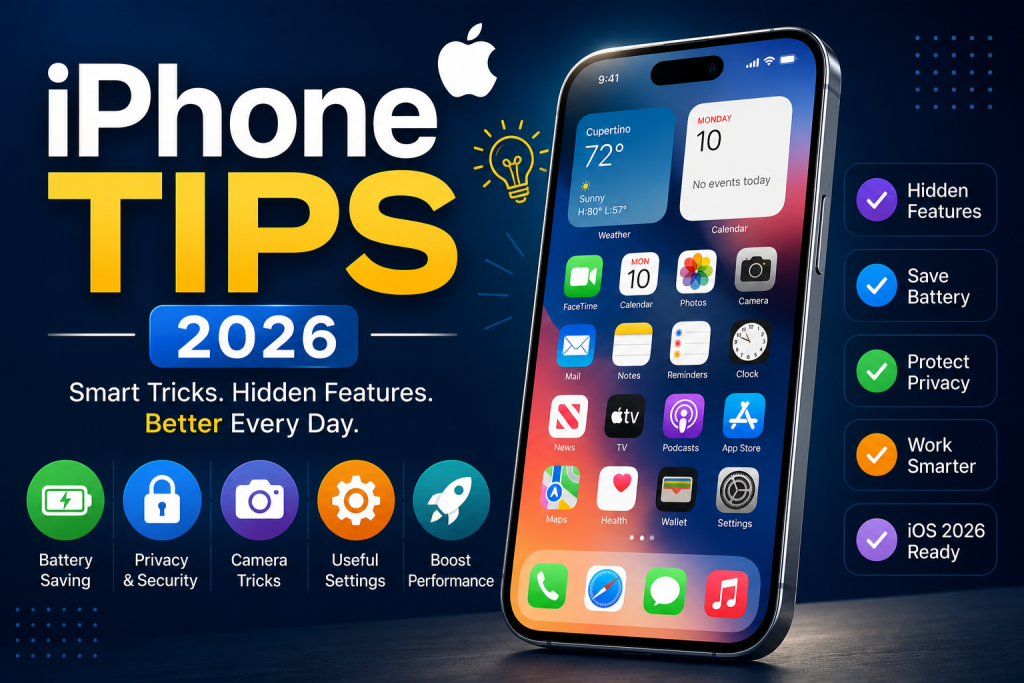
  • iPhone Tips (2026): 15 Hidden Features Every User Should Know

    iPhone Tips (2026): 15 Hidden Features Every User Should Know

    If you own an iPhone, you’re probably using only a small percentage of what it can actually do. Every software update introduces new tools that improve speed, privacy, battery life, and productivity, yet many people never discover them.

    These iPhone Tips will help you unlock hidden features, customize your device, protect your personal information, and make everyday tasks faster. Whether you recently upgraded or have used an iPhone for years, these practical suggestions can improve your overall experience.


    Best iPhone Tips for Everyday Use

    Modern smartphones are more powerful than ever, but most users stick to basic functions like calling, messaging, browsing, and taking photos.

    Learning advanced settings iPhone Tips can help you:

    • Improve battery performance
    • Increase privacy and security
    • Save time every day
    • Organize apps more efficiently
    • Capture better photos and videos
    • Reduce distractions

    The best part? Most of these features are already built into your iPhone, so you don’t need to install additional apps.


    1. Customize the Lock Screen

    The Lock Screen has become much more useful in recent updates.

    iPhone Tips You can:

    • Change fonts and colors
    • Add widgets
    • Create multiple Lock Screens
    • Automatically switch based on Focus Mode

    This makes it easier to separate work, personal life, and travel without constantly changing settings.


    2. Use Focus Mode More Effectively

    Focus Mode helps reduce distractions by controlling notifications.

    Create different profiles for iPhone Tips

    • Work
    • Sleep
    • Fitness
    • Driving
    • Personal time

    Each profile can show different Home Screens and allow notifications only from selected apps or contacts.


    3. Improve Battery Life Without Extra Apps

    One of the most valuable iPhone Tips is learning how to extend battery life.

    Simple adjustments include:

    • Lower screen brightness
    • Enable Auto-Brightness
    • Turn on Low Power Mode
    • Disable unnecessary Background App Refresh
    • Reduce Location Services for unused apps

    These settings can noticeably increase battery performance throughout the day.


    4. Protect Your Privacy

    iPhone Tips includes several privacy tools that many users overlook.

    Review:

    • Camera permissions
    • Microphone access
    • Photo Library permissions
    • App Tracking settings
    • Location permissions

    Checking these settings every few months helps keep personal information secure.


    5. Master the Camera Features

    The Camera app offers much more than basic photo capture.

    Explore features such as iPhone Tips

    • Portrait Mode
    • Night Mode
    • Live Photos
    • Macro Photography
    • Cinematic Video
    • Action Mode

    Experimenting with these options can dramatically improve photo quality without editing software.


    6. Use Live Text

    Live Text recognizes text inside photos.

    You can:

    • Copy text
    • Translate languages
    • Dial phone numbers
    • Visit websites
    • Send emails directly

    It’s incredibly useful for business cards, signs, receipts, and printed documents.


    7. Organize Your Home Screen

    Instead of scrolling through dozens of pages:

    • Remove unused apps
    • Create folders
    • Use the App Library
    • Add Smart Stacks
    • Pin frequently used widgets

    A cleaner Home Screen helps you find apps much faster.


    8. Enable Emergency Safety Features

    Every iPhone includes important safety tools.

    Activate:

    • Emergency SOS
    • Medical ID
    • Emergency Contacts
    • Crash Detection (supported models)

    These features can be extremely valuable during emergencies.


    9. Make Siri More Useful

    Many people only ask Siri basic questions.

    Instead, try using Siri to:

    • Send messages
    • Set reminders
    • Start timers
    • Open specific settings
    • Control smart home devices
    • Launch shortcuts

    Voice commands can save time throughout the day.


    10. Take Better Screenshots

    Few users realize screenshots can be edited immediately.

    After taking one, you can:

    • Crop instantly
    • Highlight information
    • Sign documents
    • Add text
    • Share without saving unnecessary copies

    This keeps your Photos library organized.


    11. Use Built-In Password Management

    Instead of remembering dozens of passwords, use Apple’s Passwords feature.

    Benefits include:

    • Strong password generation
    • Secure storage
    • Passkey support
    • Security alerts for compromised passwords
    • Easy autofill across apps and websites

    This improves both convenience and account security.


    12. Discover Hidden Accessibility Features

    Accessibility settings benefit everyone—not just users with specific needs.

    Useful options include:

    • Back Tap shortcuts
    • Voice Control
    • Magnifier
    • Sound Recognition
    • Live Captions

    These tools can simplify everyday tasks.


    13. Manage Storage Efficiently

    Running out of storage slows everything down.

    To free space:

    • Remove duplicate photos
    • Delete old downloads
    • Offload unused apps
    • Empty Recently Deleted albums
    • Review large message attachments

    Regular maintenance keeps your device running smoothly.


    14. Customize Control Center

    Control Center provides quick access to essential settings.

    Add shortcuts for:

    • Screen Recording
    • Low Power Mode
    • Calculator
    • Dark Mode
    • Flashlight
    • QR Code Scanner

    Customizing it saves valuable time.


    15. Keep Software Updated

    Software updates don’t just introduce new features—they also improve performance and security.

    Enable automatic updates so your device receives:

    • Bug fixes
    • Security patches
    • Performance improvements
    • New capabilities

    Staying current helps your iPhone perform at its best.


    Final Thoughts

    Learning a few advanced settings can completely change how you use your device. These practical iPhone Tips focus on improving productivity, battery life, privacy, organization, and overall performance without requiring extra downloads.

    Technology continues to evolve, and keeping up with built-in features ensures you get the most value from your device. Explore these settings one at a time, experiment with what works best for your daily routine, and revisit them after future software updates to discover even more improvements.

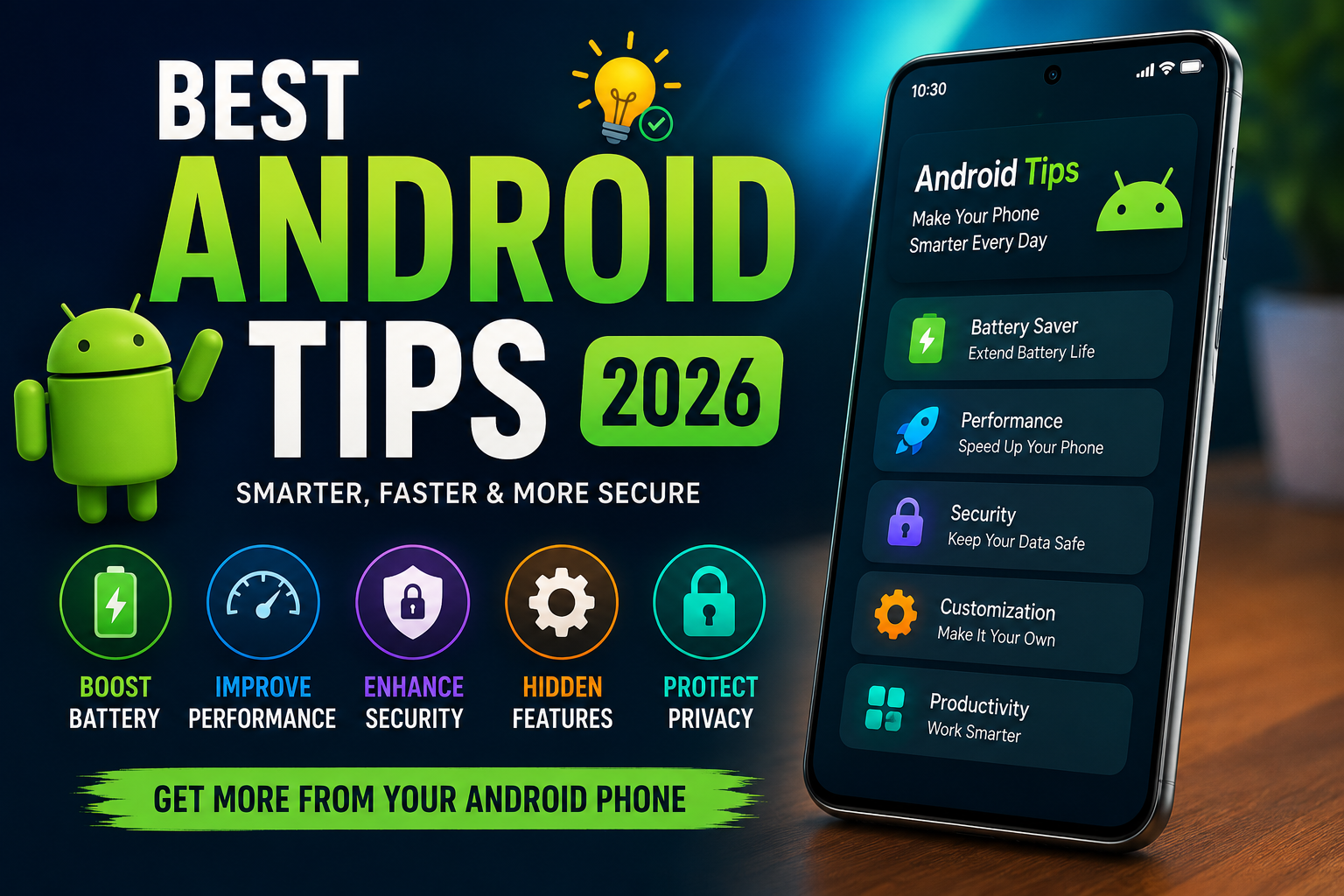
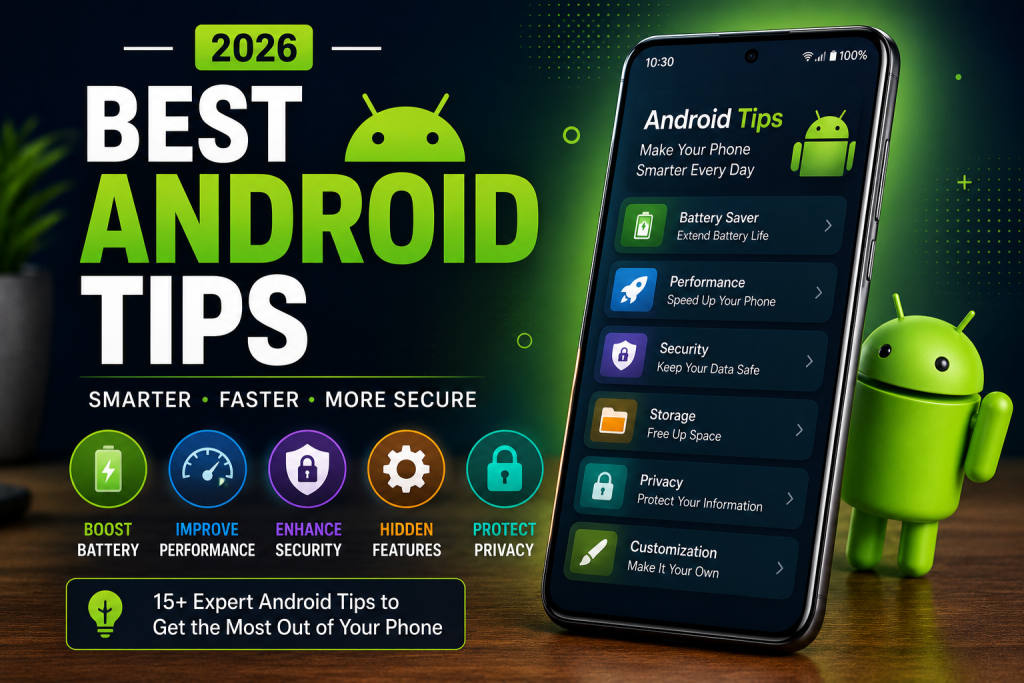
  • Android Tips (2026): 15 Hidden Features to Make Your Phone Faster, Smarter & More Secure

    Android Tips (2026): 15 Hidden Features to Make Your Phone Faster, Smarter & More Secure

    If you use an Android phone every day, chances are you’re only taking advantage of a small portion of what it can do. Modern Android Tips devices include powerful features that improve performance, extend battery life, enhance security, and make daily tasks much easier.

    In this guide, you’ll discover the best Android Tips for 2026 that can help you get more from your device without installing unnecessary apps. Whether you own a budget smartphone or a flagship model, these practical tricks can improve your overall experience.


    Android Tips to Improve Phone Performance

    Android Tips continues to evolve with every software update. New privacy controls, AI-powered tools, customization options, and battery optimizations make smartphones more capable than ever before.

    Instead of replacing your phone, learning a few hidden settings can often make it feel brand new.


    1. Enable Adaptive Battery

    Android Tips One of the easiest ways to improve battery life is by turning on Adaptive Battery.

    This feature studies your daily habits and limits power usage for apps you rarely open. As a result, your phone spends less energy running unnecessary background processes.

    Navigate to:

    Settings → Battery → Adaptive Battery

    You’ll notice longer battery life after a few days as the system learns your usage patterns.


    2. Remove Unused Apps

    Many people install dozens of applications but only use a handful regularly.

    Unused apps consume storage, receive background updates, and sometimes drain battery.

    Every few months:

    • Delete apps you no longer need
    • Clear cached data
    • Remove duplicate photo editors or games

    Keeping your phone clean improves both storage and performance.


    3. Use Digital Wellbeing

    Modern Android devices include Digital Wellbeing tools that help manage screen time.

    Features include for Android Tips

    • Daily usage reports
    • App timers
    • Focus Mode
    • Bedtime Mode

    These tools reduce distractions while encouraging healthier phone habits.


    4. Turn On Theft Protection Features

    Security should always be a priority.

    Recent Android versions include advanced protection options such as:

    • Screen lock
    • Find My Device
    • Remote erase
    • Theft Detection Lock
    • Offline device protection

    Enabling these features protects your personal information if your phone is lost or stolen.


    5. Customize Quick Settings

    Many users never edit their Quick Settings panel.

    Adding frequently used shortcuts saves time throughout the day.

    Useful shortcuts include:

    • Flashlight
    • QR Scanner
    • Wi-Fi
    • Bluetooth
    • Battery Saver
    • Screen Recorder
    • Hotspot

    Arrange them based on what you use most often.


    6. Free Up Storage Automatically

    Photos, videos, and downloads quickly fill internal storage.

    To avoid performance issues:

    • Delete duplicate files
    • Remove old screenshots
    • Empty the Downloads folder
    • Back up photos to cloud storage

    Keeping at least 20% free storage helps Android run more efficiently.


    7. Improve Privacy Permissions

    Many apps request permissions they don’t actually need.

    Open:

    Settings → Privacy → Permission Manager

    Review access for:

    • Camera
    • Microphone
    • Contacts
    • Location
    • Files

    Disable unnecessary permissions to improve privacy and security.


    8. Use Split Screen for Multitasking

    Need to watch a tutorial while taking notes?

    Android’s Split Screen feature allows two apps to run simultaneously.

    Popular combinations include for Android Tips

    • YouTube + Notes
    • Chrome + Calculator
    • Gmail + Calendar
    • Maps + Music

    This increases productivity without switching between apps.


    9. Enable Automatic Security Updates

    Security patches protect your phone against newly discovered threats.

    Always keep:

    Automatic updates provide the latest protections with minimal effort.


    10. Master Gesture Navigation

    Gesture navigation offers a cleaner interface and faster navigation than traditional buttons.

    Common gestures include of Android Tips

    • Swipe up to return Home
    • Swipe from either edge to go Back
    • Swipe up and hold for Recent Apps

    Once you become familiar with gestures, using your phone feels much faster.


    11. Use Built-In Screen Recording

    Many Android phones now include a native screen recorder.

    It’s useful for:

    • Creating tutorials
    • Recording gameplay
    • Saving video calls (where permitted)
    • Reporting software bugs

    Since it’s built in, there’s no need for third-party recording apps.


    12. Activate Dark Mode

    Dark Mode offers several advantages:

    • Reduced eye strain
    • Better nighttime viewing
    • Lower battery usage on OLED displays
    • Cleaner interface

    Most apps automatically support system-wide Dark Mode.


    13. Keep Widgets Organized

    Widgets provide instant access to useful information without opening apps.

    Popular widgets include:

    • Weather
    • Calendar
    • Notes
    • Clock
    • Battery status
    • Music controls

    Avoid overcrowding the home screen to maintain a clean layout.


    14. Take Advantage of AI Features

    New Android devices include intelligent features powered by artificial intelligence.

    Examples include:

    • Live translation
    • Smart photo editing
    • Voice typing
    • Call screening
    • AI writing assistance
    • Circle to Search (supported devices)

    Android Tips tools help complete everyday tasks faster and more accurately.


    15. Restart Your Phone Weekly

    Many users rarely restart their phones.

    A simple weekly reboot can:

    • Refresh system memory
    • Close background processes
    • Improve responsiveness
    • Resolve minor software glitches

    It only takes a minute and often improves overall performance.


    Common Mistakes to Avoid

    Even experienced users sometimes make simple mistakes that reduce performance.

    Avoid these habits:

    • Installing apps from unknown sources
    • Ignoring software updates
    • Keeping storage completely full
    • Using multiple antivirus apps
    • Granting unnecessary permissions
    • Leaving dozens of apps running in the background

    Small changes like these can significantly improve your smartphone experience.


    Final Thoughts

    Learning a few practical Android Tips can dramatically improve how your smartphone performs every day. From extending battery life and protecting personal data to organizing storage and using built-in AI features, these small adjustments make a noticeable difference.

    As Android continues to evolve throughout 2026, regularly exploring new settings and updates ensures you’re getting the most from your device. Instead of relying on third-party apps for every task, take advantage of the powerful tools already included in Android and enjoy a faster, safer, and more efficient mobile experience.

  • Best Smartphones in 2026: Top Picks for Every Budget and Lifestyle

    Best Smartphones in 2026: Top Picks for Every Budget and Lifestyle

    Choosing the Best Smartphones has become more challenging than ever. Every year, brands introduce faster processors, smarter AI features, better cameras, and longer battery life. In 2026, smartphone technology has reached a new level, giving users more options than ever before.

    Whether you’re looking for a flagship device, a budget-friendly phone, or the perfect camera smartphone, this guide covers everything you need to know before making your next purchase.

    Why Smartphone Technology Is Better Than Ever

    Modern Best Smartphones are no longer just communication devices. They have become powerful tools for work, entertainment, photography, gaming, and productivity.

    Some of the biggest improvements in 2026 include:

    • AI-powered photography
    • Faster processors
    • Longer battery life
    • Brighter OLED displays
    • Improved security features
    • Better durability
    • Advanced video recording
    • Faster wireless charging

    These upgrades allow users to enjoy smoother performance while keeping their devices useful for several years.


    What Makes the Best Smartphones?

    Not every phone is built for the same type of user. Before buying a new device, consider these important factors.

    1. Performance

    The processor is the heart of every Best Smartphones

    The latest flagship processors provide:

    • Faster app loading
    • Better gaming
    • Improved multitasking
    • Lower battery consumption

    For everyday users, even mid-range processors now deliver excellent performance.


    2. Camera Quality

    Camera technology continues to improve every year.

    Look for features such as:

    • Optical Image Stabilization (OIS)
    • Night photography
    • AI image enhancement
    • 4K or 8K video recording
    • Telephoto zoom
    • Ultra-wide cameras

    Good software processing is often more important than having the highest megapixel count.


    3. Battery Life

    Battery capacity matters, but software optimization is equally important.

    A Best Smartphones should easily last:

    • One full day of regular use
    • Several hours of gaming
    • Continuous video streaming
    • Long video calls

    Fast charging and wireless charging have also become standard features on many devices.


    4. Display

    A quality display improves everything from reading articles to watching movies.

    Popular display features include:

    • OLED technology
    • AMOLED panels
    • High refresh rates (120Hz or higher)
    • HDR support
    • High brightness for outdoor visibility

    5. Software Updates

    Long-term software support helps your phone stay secure and receive new features.

    Many premium manufacturers now offer years of operating system updates and security patches, making your investment last longer.


    Best Smartphones for Different Users

    Different users have different priorities. Here are some common categories.

    Best for Photography

    Photography enthusiasts should look for phones offering:

    • Large image sensors
    • AI-assisted photography
    • Excellent night mode
    • Professional video recording
    • Advanced portrait features

    These devices can often replace dedicated cameras for everyday photography.


    Best for Gaming

    Mobile gaming continues to grow rapidly.

    Gaming-focused Best Smartphones usually include:

    • Powerful processors
    • High refresh rate displays
    • Efficient cooling systems
    • Large batteries
    • Responsive touch sampling

    These features provide smoother gameplay and better overall performance.


    Best Budget Smartphones

    Affordable Best Smartphones now offer incredible value.

    Many budget models include:

    • Large displays
    • Reliable cameras
    • Long battery life
    • Fast charging
    • Solid everyday performance

    For most people, spending less no longer means sacrificing essential features.


    Best for Business and Productivity

    Professionals often need smartphones that improve productivity.

    Important features include:

    • Fast multitasking
    • Secure biometric authentication
    • Excellent battery life
    • Cloud integration
    • AI productivity tools
    • Reliable software support

    These devices help users stay productive throughout busy workdays.


    AI Features Are Changing Smartphones

    Artificial intelligence has become one of the biggest trends in modern smartphones.

    Common AI features include:

    • Real-time translation
    • Voice assistance
    • Smart photo editing
    • Writing assistance
    • Call summaries
    • Spam detection
    • Intelligent battery management

    These tools make daily tasks easier while improving overall user experience.


    Should You Buy a Flagship or Mid-Range Phone?

    Many buyers wonder whether flagship phones are worth the extra money.

    Choose a Flagship If You Want:

    • Premium cameras
    • Maximum performance
    • Better build quality
    • Longer software support
    • Advanced AI features

    Choose a Mid-Range Phone If You Want:

    • Great value
    • Reliable daily performance
    • Excellent battery life
    • Good cameras
    • Lower overall cost

    For many users, mid-range devices now offer nearly everything needed for everyday use.


    Tips Before Buying a Smartphone

    Before making your purchase, keep these recommendations in mind.

    • Compare battery life instead of battery size alone.
    • Read camera reviews with real-world samples.
    • Check long-term software update policies.
    • Consider storage needs before buying.
    • Make sure the display suits your daily activities.
    • Compare charging speeds.
    • Choose a phone that fits comfortably in your hand.

    Doing a little research can help you avoid buyer’s remorse.


    Future Smartphone Trends

    The smartphone industry continues to evolve quickly.

    Some expected trends include:

    • More powerful AI processing
    • Better satellite communication
    • Improved foldable displays
    • Longer battery lifespan
    • Faster wireless charging
    • Enhanced privacy features
    • More sustainable manufacturing

    These innovations will continue making smartphones smarter and more efficient.


    Final Thoughts

    Finding the Best Smartphones depends on your personal needs, budget, and daily habits. Some users prioritize photography, while others focus on gaming, productivity, or battery life. Fortunately, today’s smartphone market offers outstanding choices across every price range.

    Rather than chasing the newest specifications, focus on features you’ll actually use every day. A device with reliable performance, strong software support, excellent battery life, and a quality camera will provide lasting value for years to come.

    By understanding your priorities and comparing key features carefully, you can confidently choose a smartphone that fits your lifestyle and delivers an excellent experience in 2026 and beyond.

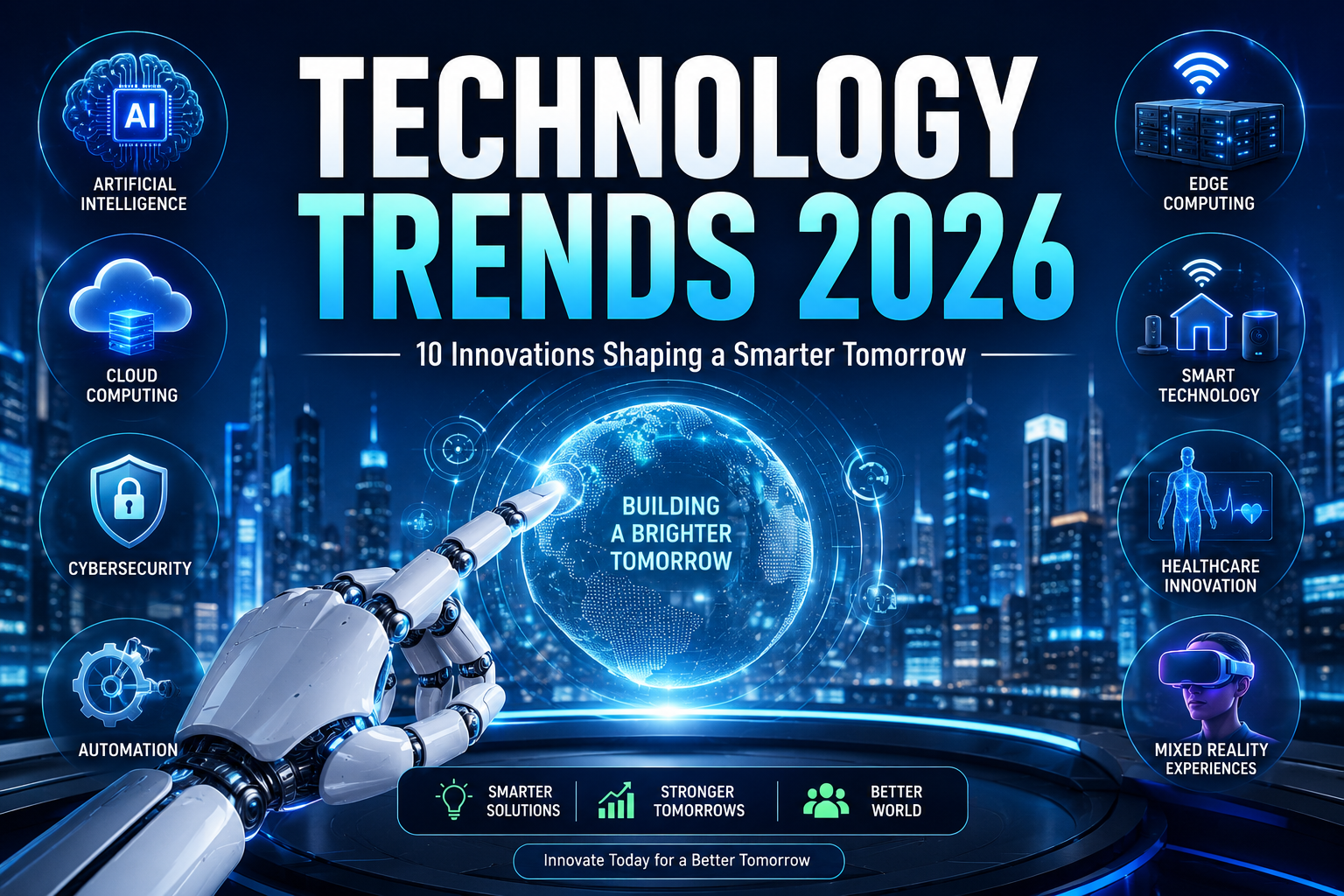
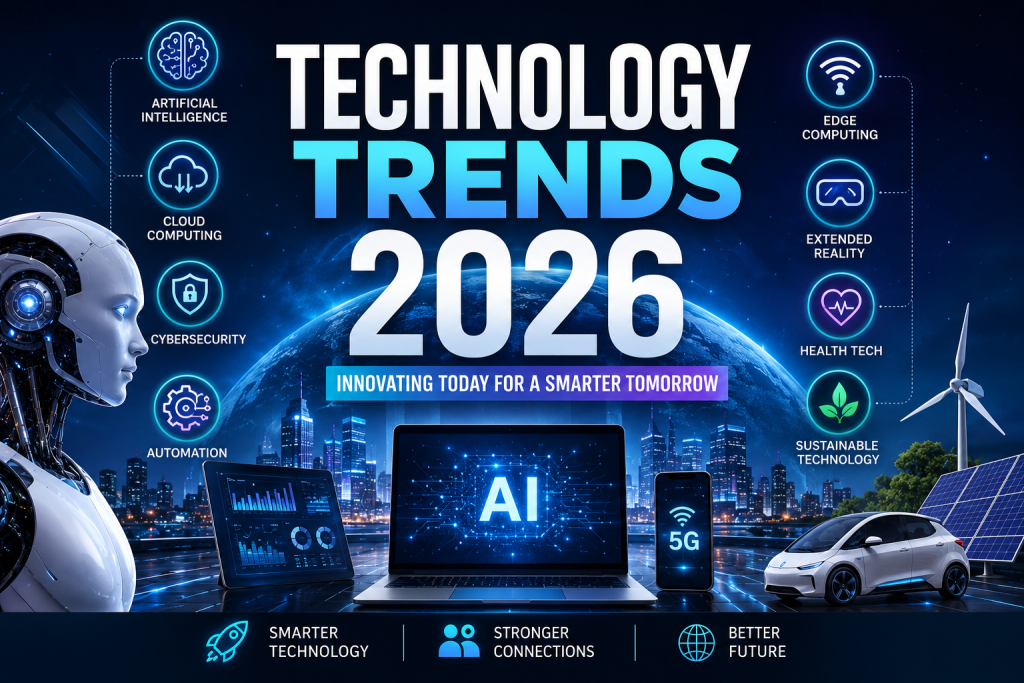
  • Technology Trends 2026: The Biggest Innovations Shaping the Future

    Technology Trends 2026: The Biggest Innovations Shaping the Future

    Technology continues to evolve at an incredible pace, changing how people work, communicate, shop, learn, and solve everyday problems. Every year introduces new innovations, but Technology Trends 2026 stand out because they focus on making artificial intelligence smarter, cybersecurity stronger, automation faster, and digital experiences more personalized.

    Businesses, students, professionals, and creators are adopting advanced tools that improve productivity and simplify daily tasks. Instead of replacing people, many of these technologies are helping individuals work more efficiently and make better decisions.

    In this guide, you’ll discover the most important innovations expected to dominate this year and why they matter for the future.


    Top Technology Trends 2026 You Should Know

    1. Artificial Intelligence Becomes More Practical

    Artificial intelligence has moved beyond simple chatbots. In 2026, AI is becoming a powerful Technology Trends 2026 assistant for businesses, teachers, healthcare providers, marketers, and developers.

    Modern AI tools can now:

    • Write high-quality content
    • Analyze large amounts of data
    • Generate images and videos
    • Create software code
    • Improve customer support
    • Automate repetitive work

    Instead of replacing employees, AI is helping teams complete tasks faster while improving overall productivity.


    2. AI Agents Handle Complex Tasks

    One of the biggest developments in Technology Trends 2026 is the rise of AI agents.

    Unlike traditional AI tools that answer questions, AI agents can complete full workflows independently. For example, an AI agent can:

    • Research a topic
    • Compare information
    • Create reports
    • Schedule meetings
    • Respond to emails
    • Manage business processes

    These intelligent assistants are becoming valuable for both businesses and individuals.


    3. Cybersecurity Gets Smarter

    As digital services expand, cyber threats continue to increase. That’s why cybersecurity remains one of the highest priorities this year.

    Modern security systems now use AI to detect unusual activity before attacks happen.

    Popular security improvements include:

    • AI-powered threat detection
    • Multi-factor authentication
    • Passwordless login systems
    • Biometric security
    • Zero-trust security models

    These Technology Trends 2026 help protect personal information, financial accounts, and business data.


    4. Automation Continues to Grow

    Automation is changing nearly every industry.

    Companies are using software robots and AI systems to perform repetitive work, allowing employees to focus on more valuable tasks.

    Examples include:

    • Invoice processing
    • Customer support
    • Data entry
    • Inventory management
    • Appointment scheduling

    Automation saves time while reducing human error.


    5. Cloud Computing Keeps Expanding

    Cloud computing has become the backbone of modern businesses.

    Instead of storing information on local computers, organizations are moving applications and data to secure cloud platforms.

    Benefits include:

    • Better collaboration
    • Faster software deployment
    • Lower infrastructure costs
    • Easy remote access
    • Improved scalability

    Cloud Technology Trends 2026 is now essential for startups, enterprises, schools, and healthcare organizations.


    6. Edge Computing Improves Speed

    Edge computing processes information closer to where it is created instead of sending everything to distant data centers.

    This reduces delays and improves performance for:

    • Smart devices
    • Connected vehicles
    • Manufacturing equipment
    • Healthcare monitoring
    • Retail systems

    Faster processing means better real-time decision-making.


    7. Smart Devices Become More Connected

    Homes and workplaces continue to adopt connected Technology Trends 2026

    Smart devices can now communicate with each other automatically, creating more convenient digital environments.

    Examples include:

    • Smart thermostats
    • Security cameras
    • Voice assistants
    • Connected appliances
    • Energy management systems

    These devices improve comfort while helping reduce energy consumption.


    8. Healthcare Technology Advances

    Technology Trends 2026 is transforming healthcare through better diagnostics, remote care, and personalized treatment.

    Doctors now use AI-assisted tools to analyze medical images, predict health risks, and improve patient outcomes.

    Other innovations include:

    • Wearable health devices
    • Remote patient monitoring
    • Digital medical records
    • Virtual consultations
    • AI-powered diagnostics

    These improvements make healthcare more accessible and efficient.


    9. Sustainable Technology Gains Momentum

    Environmental responsibility has become a major priority for technology companies.

    Many organizations are investing in greener solutions such as:

    • Energy-efficient data centers
    • Renewable energy
    • Smart power management
    • Sustainable manufacturing
    • Carbon reduction technologies

    Innovation is increasingly focused on improving performance while reducing environmental impact.


    10. Mixed Reality Finds More Real-World Uses

    Virtual Reality (VR), Augmented Reality (AR), and Mixed Reality (MR) are expanding beyond entertainment.

    Organizations now use immersive technology for:

    • Employee training
    • Product design
    • Medical education
    • Virtual collaboration
    • Interactive learning

    As hardware becomes more affordable, adoption continues to grow across multiple industries.


    How Businesses Are Preparing

    Organizations are investing in digital transformation by upgrading infrastructure, training employees, and adopting modern software.

    Successful businesses are focusing on:

    • AI integration
    • Cloud migration
    • Better cybersecurity
    • Process automation
    • Data-driven decision making
    • Employee digital skills

    Companies that embrace innovation are more likely to remain competitive in rapidly changing markets.


    Skills That Will Be Valuable

    Keeping up with Technology Trends 2026 isn’t just about using new tools. Learning the right skills can open more career opportunities.

    Some of the most valuable skills include:

    • Artificial Intelligence
    • Data Analysis
    • Cloud Computing
    • Cybersecurity
    • Prompt Engineering
    • Digital Marketing
    • Software Development
    • Automation
    • Machine Learning
    • Project Management

    Continuous learning will remain one of the strongest advantages in the modern workplace.


    Why These Innovations Matter

    Technology Trends 2026 is no longer limited to large corporations. Students, entrepreneurs, creators, freelancers, educators, and small businesses all benefit from today’s digital tools.

    Smarter software helps people save time, reduce costs, improve accuracy, and make informed decisions. As innovation accelerates, staying informed becomes increasingly important for both personal and professional growth.

    Understanding these developments today makes it easier to adapt to tomorrow’s opportunities.


    Final Thoughts

    Technology Trends 2026 highlight a future where artificial intelligence, automation, cloud computing, cybersecurity, and connected devices work together to improve everyday life. Organizations that embrace innovation, invest in digital skills, and adopt secure technologies will be better prepared for future challenges.

    Whether you’re starting a business, building a career, or simply exploring the latest innovations, keeping up with emerging technology can help you stay ahead in an increasingly digital world.