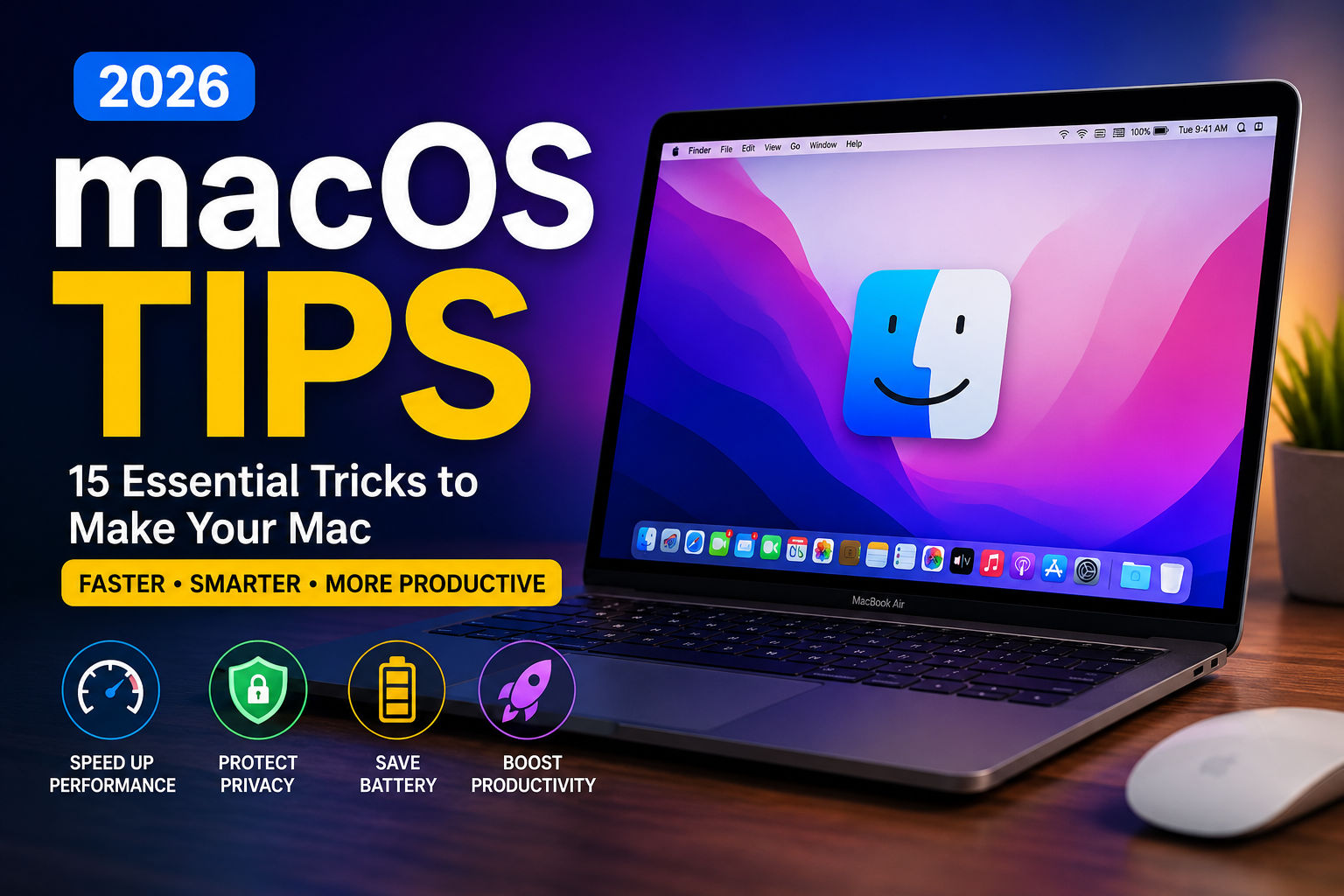
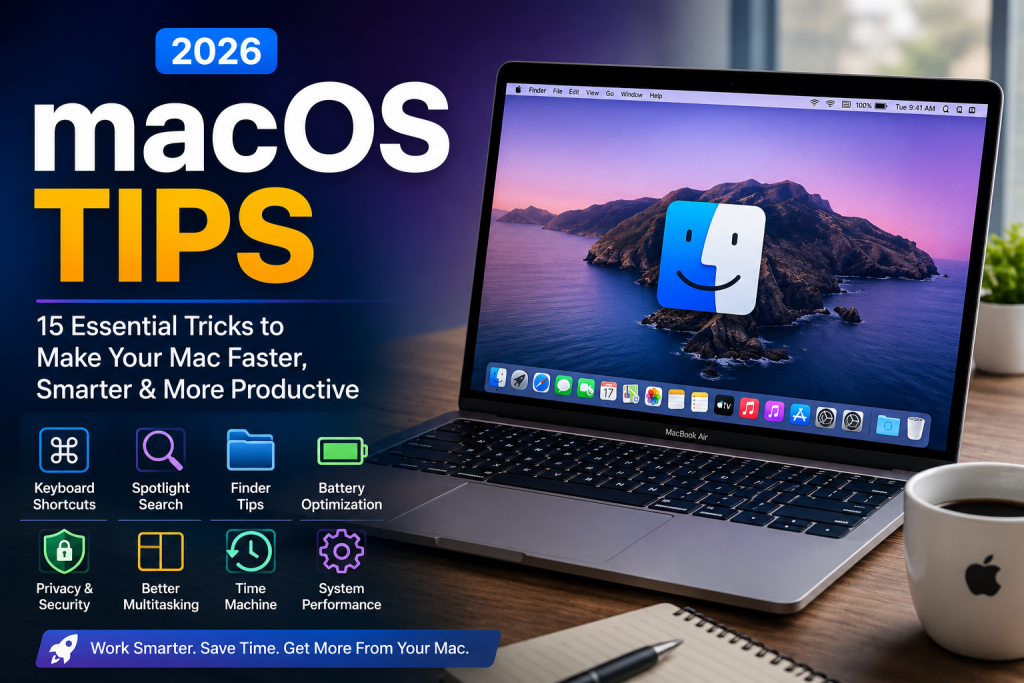
Whether you use a Mac for work, school, content creation, or everyday browsing, learning the right macOS Tips can dramatically improve your productivity. Apple’s operating system is packed with powerful features that many users never discover, even after years of ownership.
In this 2026 guide, you’ll learn practical techniques that help you work faster, organize files better, protect your privacy, and extend your Mac’s performance. These tips work for most recent versions of macOS and require little to no technical knowledge.
Let’s explore the best ways to get more from your Mac.
Why Learning macOS Tips Matters
Many Mac owners only use basic features like Safari, Finder, and Mail. However, macOS Tips includes dozens of hidden tools that can save time every day.
Benefits include:
- Faster workflow
- Better organization
- Improved battery life
- Stronger security
- Easier multitasking
- Higher productivity
Learning even a few new shortcuts can save hours over the course of a year.
1. Master Keyboard Shortcuts
Keyboard shortcuts are one of the easiest ways to speed up daily tasks.
Some of the most useful shortcuts include macOS Tips
- Command + C → Copy
- Command + V → Paste
- Command + Space → Open Spotlight Search
- Command + Tab → Switch between apps
- Command + Shift + 5 → Screenshot or Screen Recording
- Command + H → Hide current app
Using shortcuts instead of navigating menus helps you work much faster.
2. Use Spotlight Search Like a Pro
Spotlight is much more than a file search tool.
Press Command + Space, then use it to:
- Launch applications
- Search documents
- Perform calculations
- Convert currencies
- Convert measurements
- Find emails
- Search contacts
- Check definitions
Many users rarely open Launchpad because Spotlight is significantly faster.
3. Organize Your Desktop Automatically
A cluttered desktop slows productivity.
Use Stacks to automatically group files by:
- File type
- Date
- Tags
Right-click your desktop and choose Use Stacks to instantly organize everything.
4. Split Your Screen for Better Multitasking
Working with two apps side by side makes multitasking much easier.
Examples include:
- Safari + Notes
- Word + Browser
- Excel + Mail
- Messages + Calendar
Hover over the green window button and select a split-screen option.
macOS Tips is especially useful for remote work and online research.
5. Customize the Control Center
The Control Center lets you quickly access important settings.
Customize it to include:
- Wi-Fi
- Bluetooth
- Focus Mode
- Display brightness
- Sound controls
- Battery status
- Accessibility shortcuts
Removing unused controls creates a cleaner interface.
6. Clean Up Storage Regularly
Running out of storage can slow your macOS Tips.
Go to:
System Settings → General → Storage
Review:
- Large files
- Downloads
- Unused applications
- Duplicate documents
- Trash
Deleting unnecessary files keeps performance smooth.
7. Improve Battery Life
If you own a MacBook, these habits can help extend battery life:
- Reduce screen brightness
- Close unused apps
- Disable Bluetooth when unnecessary
- Enable Low Power Mode
- Keep software updated
Battery optimization helps maintain long-term performance.
8. Protect Your Privacy
Privacy is one of macOS Tips ‘s strongest features.
Review these settings regularly:
- Camera permissions
- Microphone permissions
- Location access
- Screen recording permissions
- Files and folders access
Only allow trusted applications to access sensitive information.
9. Take Advantage of Finder Features
Finder includes several tools many people overlook.
Useful features include macOS Tips
- Tags for organizing files
- Quick Actions
- File previews
- Smart Folders
- Favorites sidebar
Using Finder efficiently makes locating documents much faster.
10. Keep Software Updated
Apple regularly releases updates that improve:
- Security
- Stability
- Performance
- Compatibility
- Bug fixes
Enable automatic updates to ensure your Mac stays protected and performs at its best.
11. Use Focus Mode
Focus Mode helps reduce distractions during work or study sessions.
Create different profiles for:
- Work
- Personal time
- Sleep
- Gaming
- Meetings
Notifications are automatically filtered based on your schedule.
12. Back Up with Time Machine
Data loss can happen unexpectedly.
Time Machine provides an easy backup solution that allows you to restore:
- Documents
- Photos
- Applications
- Entire system settings
Regular backups offer peace of mind if hardware issues occur.
13. Manage Startup Apps
Too many startup applications increase boot time.
Go to:
System Settings → Login Items
Remove apps you don’t need at startup.
Your Mac will launch faster and use fewer system resources.
14. Use Safari Profiles
Safari now supports separate browsing profiles.
Create different profiles for:
- Personal browsing
- Work
- Shopping
- Research
Each profile maintains its own cookies, bookmarks, extensions, and browsing history.
15. Restart Occasionally
Although macOS Tips are reliable, restarting periodically helps:
- Clear temporary memory
- Finish pending updates
- Resolve minor performance issues
- Refresh background processes
A simple restart can solve many common problems.
Common Mistakes to Avoid
Many users accidentally reduce their Mac’s performance by:
- Installing unnecessary cleanup software
- Ignoring software updates
- Keeping too many browser tabs open
- Filling storage completely
- Never restarting the computer
- Downloading applications from untrusted sources
Avoiding these habits helps keep your Mac secure and responsive.
Frequently Asked Questions
Are these tips useful for beginners?
Yes. Every recommendation is beginner-friendly and requires little technical experience.
Will these tips make my Mac faster?
Many of them can improve responsiveness by reducing unnecessary background activity, organizing storage, and optimizing system settings.
Do these tips work on newer Macs?
Most recommendations apply to modern versions of macOS available in 2026.
Is it safe to enable automatic updates?
Yes. Automatic updates help improve security, fix bugs, and ensure compatibility with the latest software.
Conclusion
Learning the right macOS Tips is one of the easiest ways to improve your daily computing experience. From mastering keyboard shortcuts and Spotlight Search to managing storage, strengthening privacy, and optimizing battery life, small changes can lead to noticeable improvements in speed and productivity.
As macOS continues to evolve in 2026, regularly exploring new built-in features will help you get the most from your Mac without installing unnecessary third-party tools. Start with a few of these tips today, and you’ll enjoy a faster, more organized, and more efficient workflow.
Leave a Reply